
Featuring Sponsors
Sponsor logos you add appear on the public event page as clickable links and on the printable event poster, with a per-event toggle to keep them off the poster.
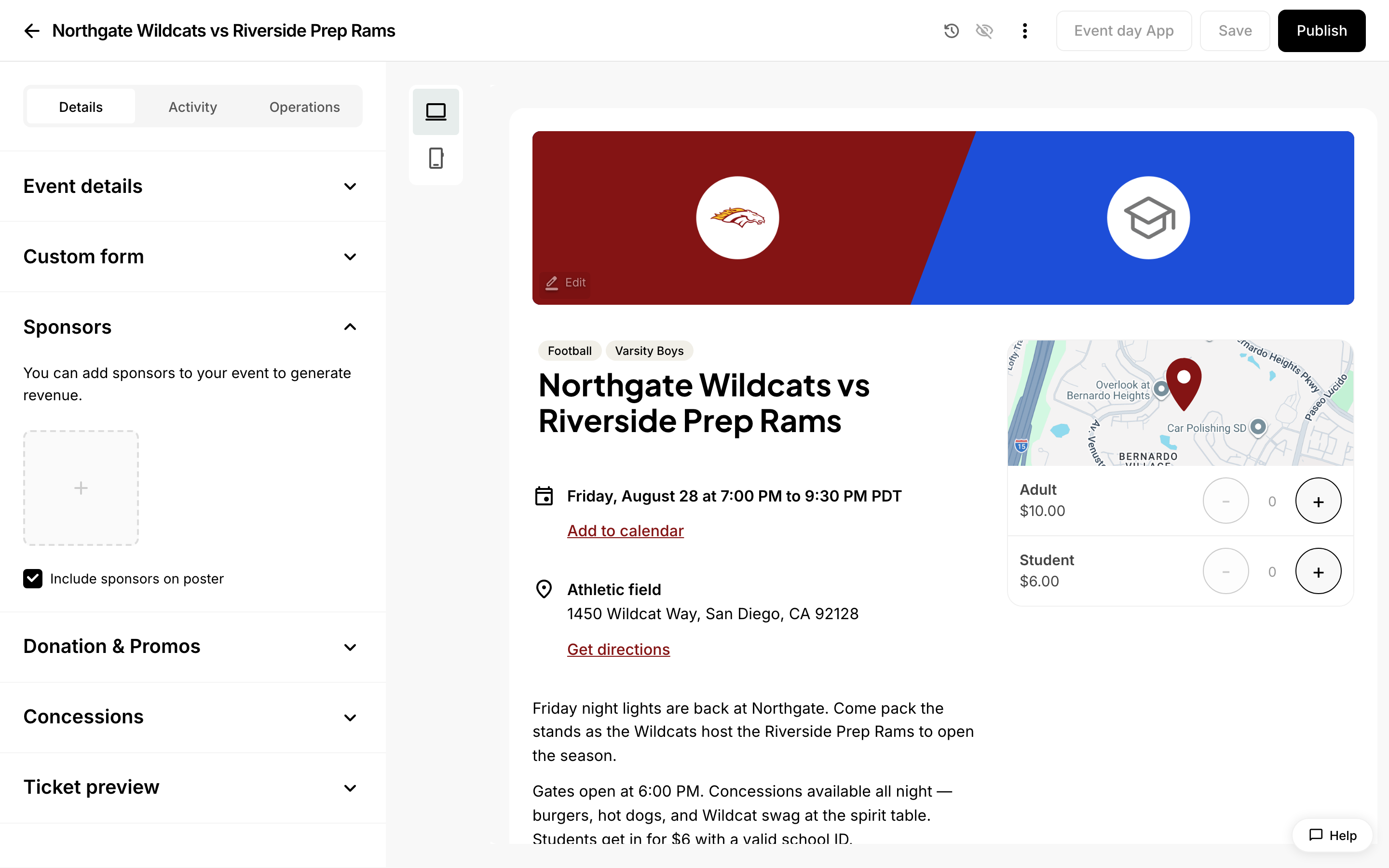 Featuring sponsors on your events.
Featuring Sponsors
Once you add a sponsor, their logo appears in two places automatically: on the public event page that ticket buyers see, and on the printable event poster. You do not need to configure anything extra to feature them — though you can choose to leave sponsors off the poster.
Where do sponsor logos appear?
- The public event page. Sponsor logos display on the event page seen by ticket buyers. If the sponsor has a valid website link, selecting the logo opens that site in a new browser tab.
- The printable event poster. Sponsor logos display in a strip on the poster you can print or share. Up to six sponsor logos are shown.
How do I keep sponsors off a poster?
Each event has a toggle for this in the event editor.
- Open the event in the event editor.
- Expand the Sponsors section.
- Find the Include sponsors on poster checkbox.
- Leave it checked to show sponsors on the poster, or uncheck it to leave them off.
- Save the event.
Unchecking this only affects the poster. Sponsor logos still appear on the public event page.
Why aren't my sponsors showing?
- The logo didn't finish uploading. A sponsor needs an uploaded logo image to display anywhere. Reopen the sponsor and confirm the logo appears in the preview.
- The event wasn't saved. If you added the sponsor in the event editor, save the event so the change takes effect.
- The poster is set to exclude them. Check that Include sponsors on poster is checked for that event.
How do I add a sponsor in the first place?
See Adding Sponsors for the steps to upload a logo and enter a website link, both for your whole account and on an individual event.
Was this helpful?