
Adding Sponsors
Add a sponsor by uploading their logo and entering their website link, either institution-wide in Events & Athletics settings or on an individual event.
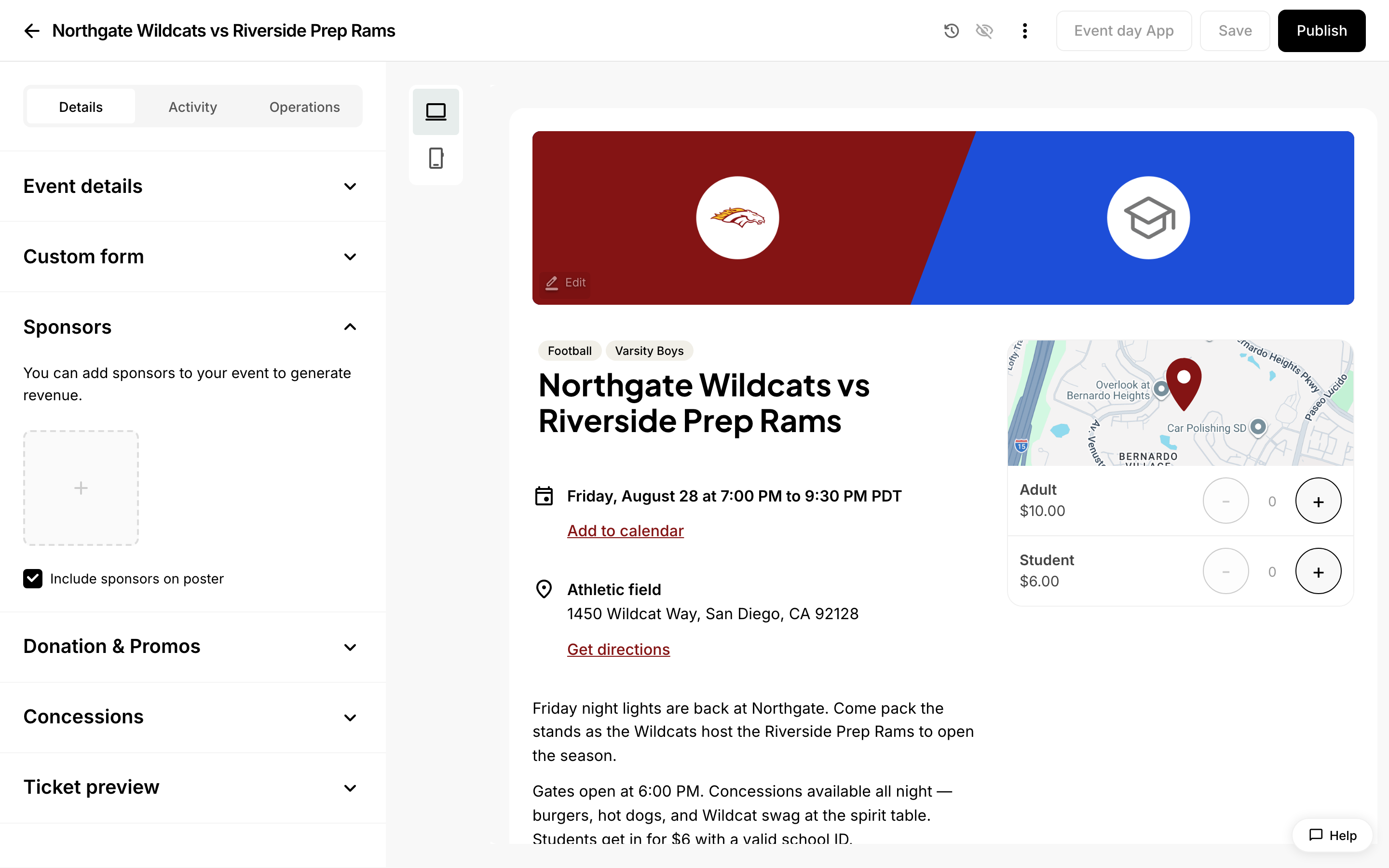 The Sponsors section of the event editor.
Adding Sponsors
A sponsor in Admittee is a logo image plus a website link, so adding one takes just two things: upload the sponsor's logo and enter the web address you want it to point to. You can do this in two places — once for your whole account in the Events & Athletics settings tab, or on a single event in the event editor.
What is a sponsor in Admittee?
A sponsor is simply a logo image and a website link. There is no name, contact, or account field to fill in. When someone clicks the logo on your public event page, it opens the link you entered in a new browser tab.
For best results, use a square logo. The recommended size is 400 x 400 pixels.
How do I add a sponsor for my whole account?
Adding a sponsor in settings keeps your sponsor logos in one place so you can manage them centrally.
- Go to Settings and open the Events & Athletics tab.
- Find the Event sponsors card.
- Select the add (+) button.
- Select the upload area and choose the sponsor's logo image.
- Enter the sponsor's website link (for example,
https://www.sponsor.com). - Select Save.
The logo must be uploaded before you can save. The website link is optional, but if you enter one it must be a valid web address.
How do I add a sponsor to a single event?
- Open the event you want in the event editor.
- Expand the Sponsors section.
- Select the add (+) tile.
- Upload the sponsor's logo image.
- Enter the sponsor's website link.
- Select Save, then save the event.
How do I edit or remove a sponsor?
Wherever a sponsor logo appears (settings or an event), select it to reopen the sponsor. From there you can:
- Upload a new logo to replace the current image.
- Change the website link.
- Delete the sponsor using the delete option in the dialog.
Remember to save the event afterward if you edited a sponsor from the event editor.
Where do sponsors show up?
Once added, sponsor logos appear on the public event page and on the printable event poster. See Featuring Sponsors for details on how they display and how to keep them off a poster.