
Admittee Pricing & Fees
Find your plan and fee rates, choose who pays processing fees, and explain each charge on a receipt to a colleague or parent.
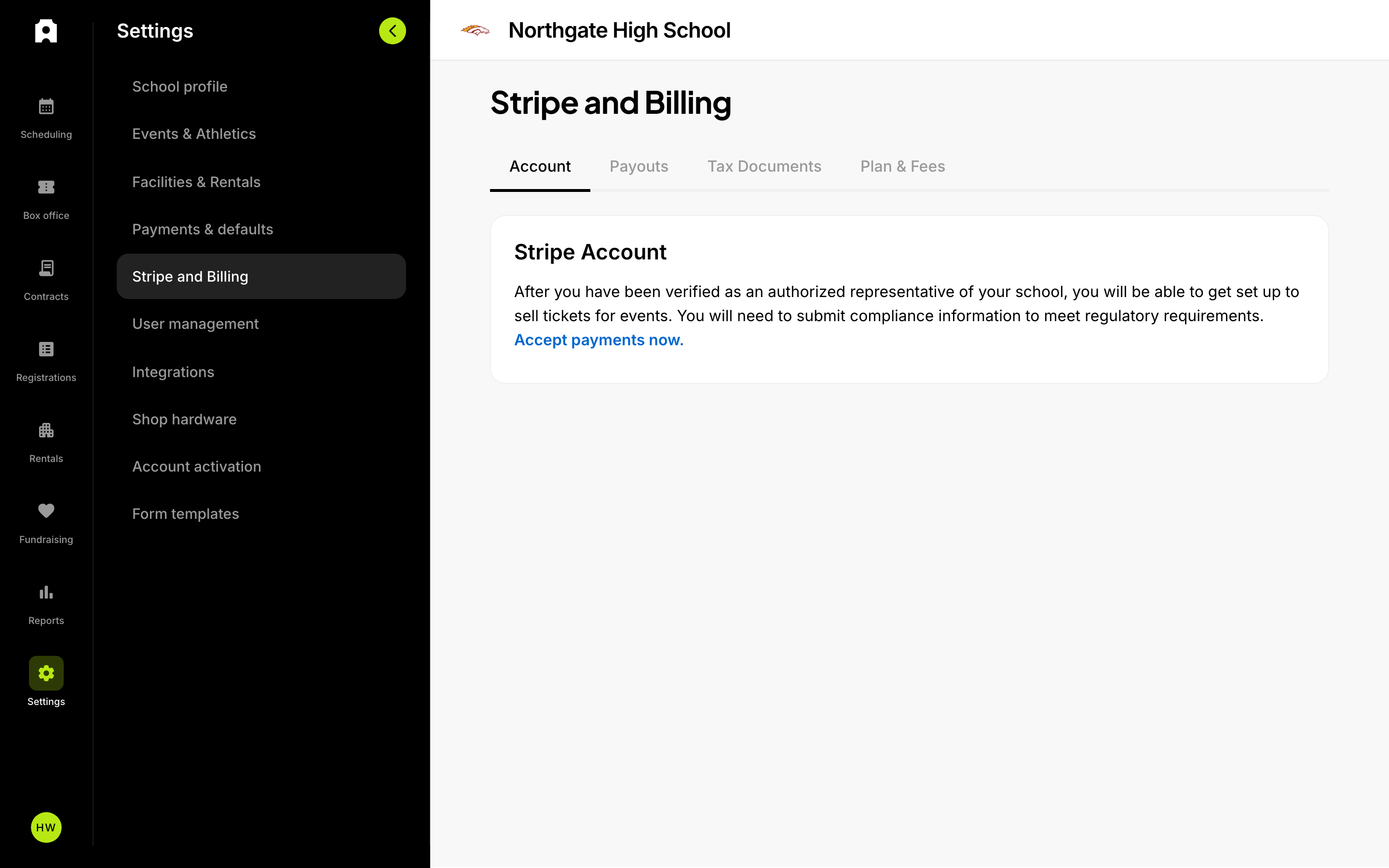 Your plan and fees in the Finances settings.
Admittee Pricing & Fees
This article shows you where to find your plan, your fee rates, and the payment methods you accept. It also explains what each charge on a receipt covers, so you can answer a colleague or a parent. Open it when someone asks "why was the total $26.75 and not $25?", or when you are deciding whether buyers or your organization should cover fees.
Your plan and rates are in your dashboard under Account & Settings, then Plan & Fees. Admittee's fees cover credit card processing, platform tools, and support. You don't need to open any other accounts, and there are no hidden charges.
How to find your pricing
- Log in to your Admittee dashboard.
- Go to Account & Settings.
- Select Plan & Fees.
- Read the Your plan section at the top. The fee tables are below it.
The tables on this page show your organization's actual rates. If a number in this article doesn't match your page, go by your page.
Your plan
You will see two plan cards side by side.
- Standard costs $0 per month. It includes up to 3 facilities, a shared event calendar, event scheduling and approvals, payments and payouts, and conflict detection. (A facility is a space you book, such as a gym or a field.)
- Admittee Pro is a paid monthly subscription. It includes unlimited facilities and unlimited sub-facilities. You can split a facility into multiple sections, and it prevents double-bookings. Pro also comes with priority support.
Your current plan is highlighted. If your subscription renews, the card can show the renewal date. If your organization has a discount on its subscription, the card notes that too.
How do I upgrade, change, or cancel my plan?
- On Plan & Fees, find the Admittee Pro card.
- To start Pro, select the upgrade button. You will go to a secure checkout page.
- To change or cancel a subscription you already have, select the button on the card that opens the billing portal.
After checkout, you come back to Plan & Fees, and the page checks your plan a few times on its own. You don't need to refresh. The plan can take a few seconds to update.
What if checkout or billing won't open?
You will see a message such as "Couldn't open checkout" or "Couldn't open billing". Try again. If the page says "Couldn't load your plan", refresh the page.
How transaction fees work
Fees are charged per item in the cart, not once per order. Each item is charged a percentage of its price plus a small fixed amount.
Two things set the rate:
- The item type. Tickets, passes, concessions, fundraising, registrations, rentals, and contracts each have their own rates. (A pass is one ticket that gets the holder into several events.)
- How the sale happens. There are separate rates for online sales and point-of-sale sales, where a staff member rings up the sale on a device. Tap-to-pay sales, where a buyer taps a card or phone on a staff device, also have their own rate.
The default rate is 5% + $0.50 per item, unless your organization has custom rates. For example, a $25 ticket at the default rate has a fee of $1.25 + $0.50 = $1.75. If the buyer pays the fee, they pay $26.75 in total.
Your organization gets the item price you set. Depending on the event's processing fee setting, the fee is either added on top for the buyer or taken out of your proceeds.
Who pays the processing fee
You choose this on each event, in the Processing fee dropdown. It has three options:
- Buyer chooses at checkout: buyers can tick a checkbox at checkout to cover the fee.
- Buyer always pays fees: the fee is added at checkout as a separate line item.
- We absorb fees: your organization covers the fee.
If you don't change the dropdown, it is set to Buyer always pays fees.
On donation and fundraising pages, the options say "donor" instead of "buyer": Donor chooses at checkout and Donor always pays fees.
Volume discounts on rentals and contracts
Rentals and contracts can have a volume discount. Items priced above a set amount pay a flat percentage instead of your standard rate. The discounted rate replaces the standard rate. It is not added on top.
If your organization has a volume discount, a line under the fee tables describes it, for example: "Volume discount: rentals over $500 pay a flat 2%".
What happens if a buyer uses a promo code?
The discount comes off first. Then the percentage fee is calculated on the lower price. For example, a $100 ticket with a 50% code is charged a fee on $50.
Two more things to know:
- Promo codes never reduce fundraising items. A donation is never lowered by a code.
- Volume discounts look at the price after the code. A large code can push a rental below the volume threshold, and it then goes back to your standard rate.
What happens if a registrant picks a paid add-on?
Some registrations offer paid extras, such as a materials fee, an optional workshop, or a jersey. These are added to the amount the percentage fee is calculated on.
Two exceptions:
- A promo code takes money off the base registration fee only, not the add-on. That way, discounts on extras don't come out of your organization's pocket.
- An add-on doesn't change whether a registration gets a volume discount. That is decided by the registration price alone.
What if an item is free?
If an order adds up to $0, there are no fees at all. Free tickets and free registrations cost you nothing.
There is one exception. If a free registration includes a paid add-on that the registrant chose, there is money to process, so fees apply.
We could not confirm whether a $0 item in an order that also contains paid items is charged the fixed per-item amount. Check a test order or contact support if this matters for your event.
What if we take cash at the gate?
Sales recorded as cash have no processing fee and no platform fee. You keep the full amount.
Accepting bank transfers (ACH)
ACH means paying straight from a US bank account. On Plan & Fees you can turn on bank transfers, so payers can pay registrations and rentals from a bank account instead of a card. This helps with large invoices, where card fees on a four-figure rental add up.
What you will see:
- In the fee tables, the row is labeled ACH (bank transfers). While bank transfers are turned off, the row shows an Off badge.
- The bank transfer rate is 1.5%, capped at $15. When bank transfers are on, the row also says "Bank rate applies when the payer chooses a US bank account."
- In the fundraising table, the bank transfer row shows the card rate instead. Donations paid from a bank account are charged at the card rate, so the row shows what will actually be charged.
What if I can't change the bank transfer setting?
Only admins can change accepted payment methods. If you are not an admin, the switch flips back and you see "Only admins can change accepted payment methods." Ask an admin at your organization to make the change.
If you see "We couldn't save that. Please try again.", try the switch again in a moment.
What if my plan card shows an end date?
If your subscription is set to stop at the end of the billing period, you keep Pro features until that date. After that, your account moves to Standard. If you didn't mean to cancel, open the billing portal from the plan card and restart the subscription, or contact support.
What we could not confirm here
This article doesn't list the monthly price of Admittee Pro or any rates agreed specifically with your organization. Those are set on your account. The plan cards and fee tables on Plan & Fees always show what you actually pay.
Need help?
If you have questions about a rate on your page, or want help choosing a plan for your facilities, contact Admittee support through your help center.