
Your Account & Profile
Activate your Admittee account, edit your profile and photo, verify your email, manage notification emails, and close your account when needed.
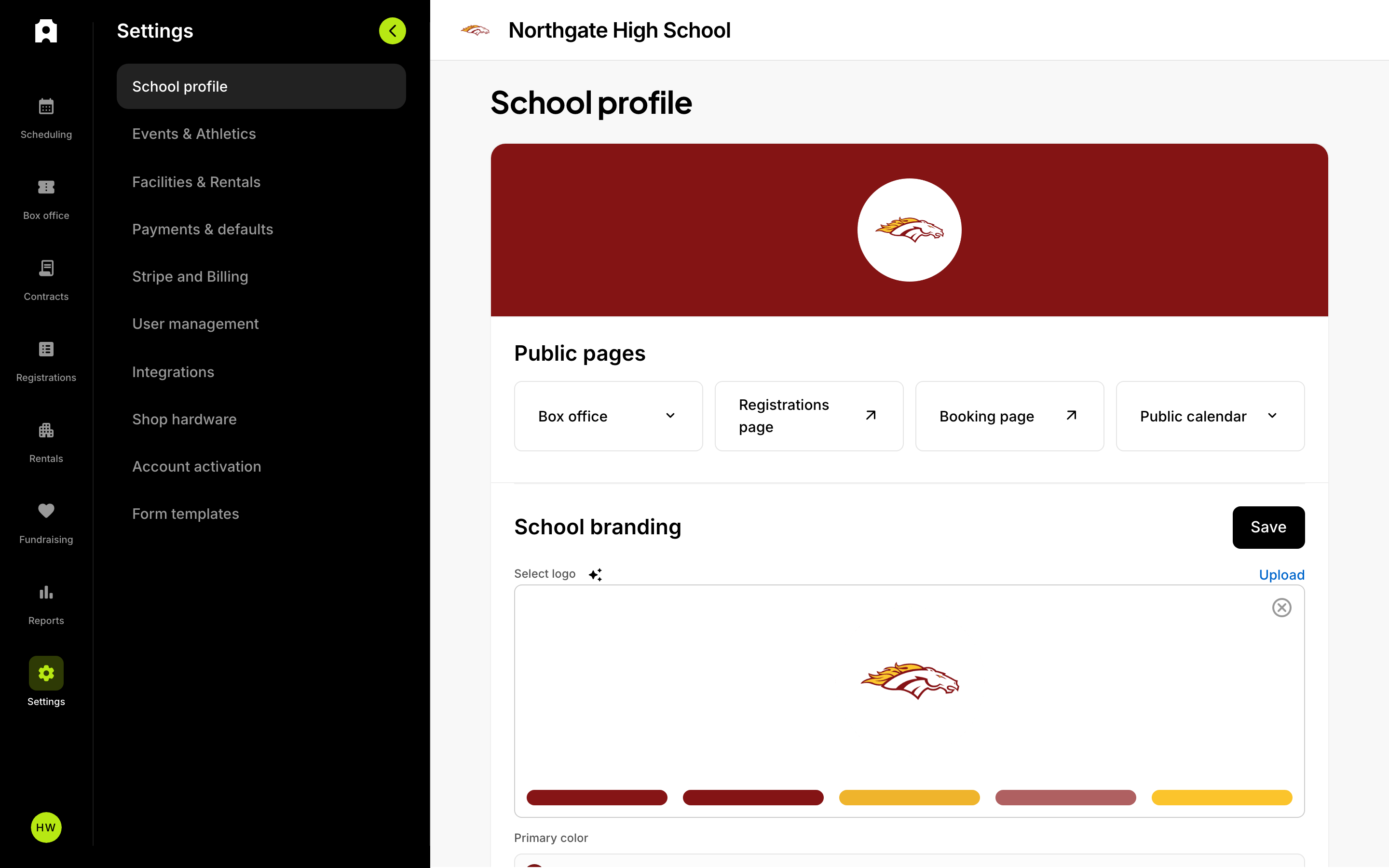 The Settings area, where you activate your account and configure your school.
Your Account & Profile
To finish setting up Admittee, open Settings and complete the Account activation checklist, then use the My profile screen to edit your name, photo, phone number, and notification preferences. Your personal details live in My profile (opened from your avatar menu), while account activation for your organization lives in Settings.
How do you activate your Admittee account?
Account activation is a checklist in Settings that verifies your organization and connects payments so you can start selling tickets.
- Open Settings from the left sidebar (or from your avatar menu), then choose the Account activation tab.
- Verify your email. Expand the first step, select Send code, then enter the 6-digit code sent to the email address on your account. A Verified badge appears once it is confirmed. You can request a new code after a short wait if it does not arrive.
- Verify your organization. Enter your full name, your role (for example, Athletic Director), and an email that uses your organization's official domain, then select Submit for approval.
- Wait for approval. The Admittee team reviews each organization to keep accounts secure and legitimate. You will receive an email as soon as you are approved, and you can keep building events in the meantime.
- Accept payments. Select Connect Stripe and complete the guided steps so Admittee can securely process your transactions.
- When approval and payments are both complete, the checklist shows You're ready to go and you have full access to publish events and collect payments.
How do you edit your profile?
Your name, photo, and phone number are managed in the My profile screen.
- Select your profile photo (your avatar) to open the account menu, then choose My profile.
- Under User profile, select Update photo to upload a new image. It is resized automatically for display.
- Update your First name, Last name, and Phone number.
- Select Save.
If you have not added a photo, Admittee shows your initials instead.
How do you verify or change your email address?
Your account email is shown under Contact email in My profile. When it is verified, a checkmark appears next to it.
- To verify your email, use the Verify your email step in the Account activation checklist (see above). The verification code confirms that you can receive mail at the address already on your account.
- To change your email address, contact Admittee support. The contact email field in My profile is locked, so email changes are handled for you rather than edited directly.
How do you manage notification emails?
If your role includes admin access, a Notifications section appears in My profile so you can choose which activity emails you receive.
- Open My profile from your avatar menu.
- In the Notifications section, turn on or off any of:
- When a pass is purchased
- When tickets are purchased
- When donations are made
- When a payout is paid
- Select Save.
How do you log out or reset your password?
Both actions live in the Authentication section of My profile.
- Log out signs you out on this device.
- Reset password sends you to the login screen's password-reset flow using your account email.
How do you close your account?
Account removal is handled by Admittee support. When your account is removed:
- You are logged out of all devices, and your passkeys and saved credentials are removed.
- Your email address is freed, so you can accept an invitation from a different organization.
- Historical activity such as tickets sold and events created stays in Admittee for record-keeping, but you no longer have access to it.
If you are the owner of your organization, ownership must be transferred to another user before your account can be removed. Contact Admittee support to start either process.