
Managing Finances & Payouts
Check when your next payout arrives, change how often you get paid, and match each bank deposit to the sales behind it.
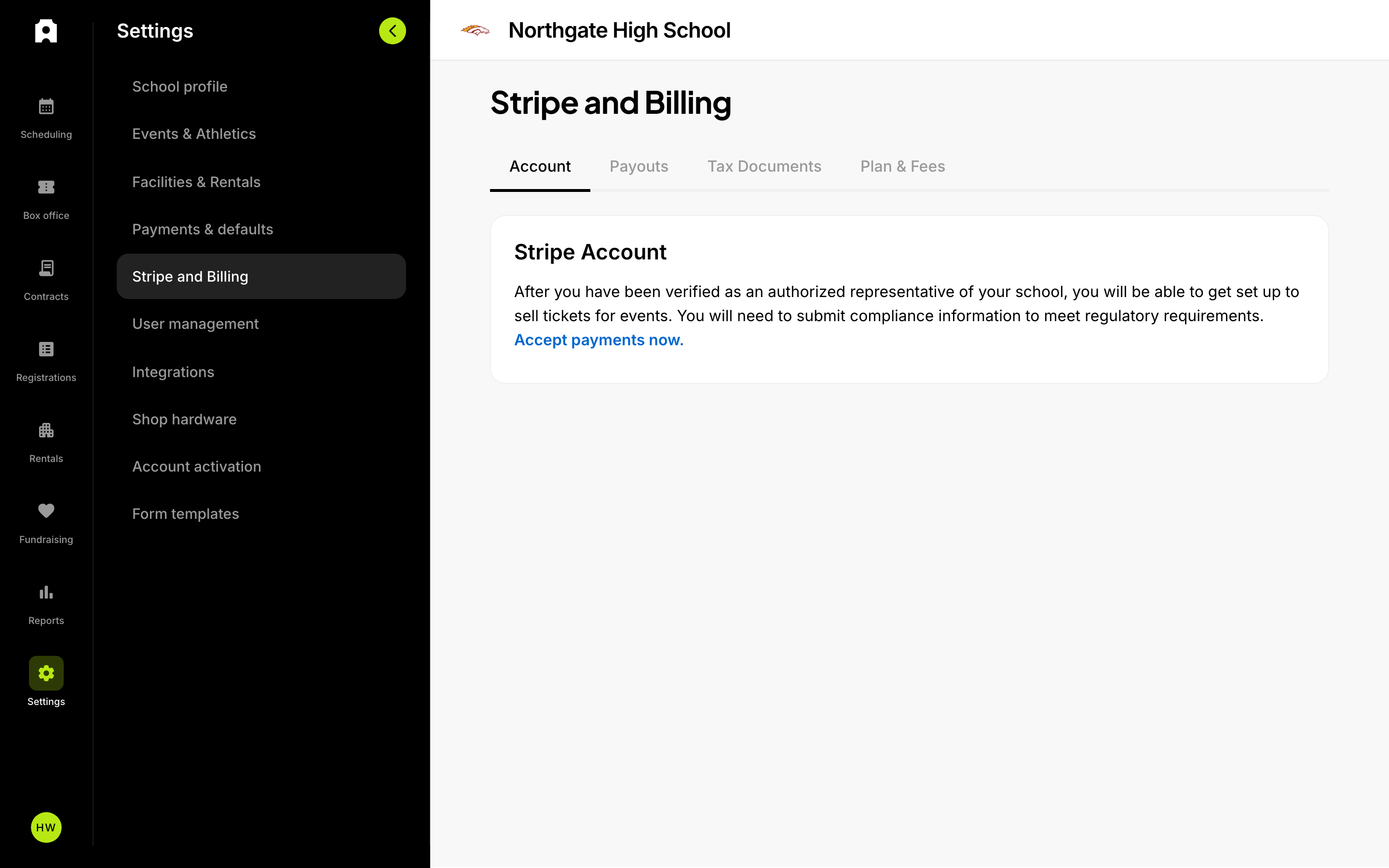 Payouts and Stripe status in the Finances section.
This article explains what happens to your money after a sale. You will learn how to:
- check when your next payout arrives
- change how often you get paid
- open a deposit and account for every amount on your bank statement
Use it when you are setting up payments for the first time, matching a bank deposit, or answering a treasurer who asks why an amount looks short.
Admittee collects money from ticket sales, passes, registrations, fundraising, concessions, rentals and contracts. A pass is one ticket that gets someone into several events. Stripe is Admittee's payment partner. It processes this money and sends it to your organization's bank account. Each transfer to your bank is called a payout. When a payout reaches your bank, it shows up there as a deposit.
Where your payout settings are
Go to Settings, then Stripe and Billing. You will see four tabs: Account, Payouts, Tax Documents and Plan & Fees.
Use the Account tab to manage your Stripe account. You have to confirm who you are before it shows your bank or account details. Click Sign in to see details to open the account view. From there you can also review payments, issue refunds and respond to disputes. A dispute is when a buyer asks their bank to reverse a charge.
What if we can't accept payments yet?
If your organization can't accept payments yet, the Payouts tab tells you. Before you can sell tickets, someone has to be verified as an authorized representative of your organization. That person also has to submit some compliance information, which payment rules require. Click Accept payments now to start. This opens the account activation page in Settings. You won't have any payouts to view until activation is finished.
View your payout schedule and history
- Go to Settings, then Stripe and Billing.
- Open the Payouts tab.
- Read the summary at the top:
- Total balance: the money your account is holding right now.
- Next upcoming payout (estimated): about how much your next payout will be.
- Scheduled for: the date of your next payout. The Update link is next to it.
- Scroll down to your payout history. Each row shows the Date, the Status (for example, Paid), the Destination and the Amount. The Destination shows the last four digits of your bank account.
To narrow the list, use the Status, Amount, Method and Date filters. To download the history, click Export.
Change how often you get paid
- On the Payouts tab, click See details.
- Choose a new payout frequency.
Daily payouts are the default. Unless you change this, money goes to your bank account every day.
Get an email when a payout arrives
Payout emails are off until you turn them on.
- Click your avatar, then My profile.
- Go to Notifications.
- Turn on When a payout is paid.
This setting only affects you. Everyone who wants the email has to turn it on for themselves.
Read a deposit statement
Every deposit has a statement that shows what it is made of. You can use it to match each line on your bank statement to the sales behind it. Deposits are listed newest first, 25 at a time. Each one shows:
- the date it arrived
- the amount
- the status
- the receiving bank and its last four digits
- how many sales and refunds it includes
When you open a deposit, its statement has four parts:
- Sales by category, then item type. For example: Athletics → Tickets and Athletics → Concessions. Each line shows a count, the gross amount, fees, refunds and net. Gross is the amount before fees and refunds. Net is what is left after them. The category with the largest net comes first. Sales without a category are listed under Uncategorized. Sales without an item type are listed as Other.
- Refunds. Each refund is on its own line, with the original sale date, customer, title, item type and amount.
- Adjustments. This is money in the deposit that doesn't come from a sale. Examples include fraud-protection fees, disputes, per-charge card reader fees and manual adjustments. Each line shows a description, date and amount.
- Totals. Gross, fees, refunds, adjustments and net. The statement checks its net against the amount that actually reached your bank, to the cent.
For a deposit that has been paid, the fees on the statement are the exact amounts Stripe charged on those sales. They are not estimates.
What if a deposit has no statement yet?
The deposit is probably in transit. This means the money has left your Stripe balance but hasn't reached your bank yet. An in-transit deposit shows only its date, amount and status, and it may not show how many sales it includes. The full statement appears after the payout is paid.
What if the statement's net doesn't match the deposit?
The statement checks this for you. If its net doesn't match the amount your bank received, it shows you the difference. You don't need to add up the lines yourself. If you see a difference, write down the deposit date and amount and contact support. Don't change your books to cover the gap.
What happens if a payout fails or is canceled?
The deposit is marked as reversed, and it has no statement. The money never reached your bank, so the sales in that payout go back to Pending. Stripe sends the money again in a later payout. That payout has its own statement, and the sales appear there.
You don't need to do anything to resend the money. If payouts keep failing, check your bank details on the Account tab.
Why doesn't a payout match my sales total?
There are usually four reasons:
- Fees. Processing fees come out of each sale before it is paid out. If your buyers pay the fee, it was added to their total, so your share of the sale stays the same.
- Refunds. Refunds issued since the last payout are taken out of this one.
- Adjustments. Charges such as fraud-protection or card reader fees are taken out of the deposit.
- Timing. A sale made just before a payout may not arrive until the next one. To check, click Reports, then the Transactions tab. A sale that hasn't been paid out yet has no payout date.
To find out which reason applies, open the deposit and compare its Totals with your bank statement. Each of the four reasons has its own figure.
What if a refund happens after the sale was already paid out?
The original sale keeps its payout date. The refund is handled on its own and shows up as a negative amount in the deposit that includes it. So a deposit can contain refunds for sales made weeks earlier. In Reports, a refund shows the date of the payout that included the refund, not the date of the original sale.
Tax documents
To find tax and financial documents for reporting and compliance, go to Settings, then Stripe and Billing, then Tax Documents. Each document shows its Type, Name and Created date, and you can download it from this page. If no documents have been issued yet, you will see No documents yet.
Choose who pays processing fees
Admittee's fees cover card processing, platform tools and support. You don't need any other accounts, and there are no hidden charges. To choose who pays the service fee:
- Go to Settings, then Payments & defaults.
- Find the Service fees defaults card.
- Choose an option from the Processing fee dropdown:
- Buyer chooses at checkout: buyers see a checkbox. If they tick it, the fee is added to their total to help your organization cover processing costs. This is the default.
- Buyer always pays fees: the fee is always added to the buyer's total.
- We absorb fees: your organization pays the fee out of each sale.
This choice applies to all your events, but you can change it for a single event. The same card also has a toggle called Give buyers the option to round-up to the nearest dollar. When it's on, supporters can round their total up and give the extra as a small donation.
These things affect how much is charged:
- Each sale type can have its own rate: tickets, passes, registrations, concessions, rentals, contracts and fundraising.
- The rate also depends on how the buyer pays: online, in person with a card reader, or by bank transfer (ACH).
- Some fee schedules use volume pricing. This means items above a certain price are charged a different rate.
- Cash payments you record in Admittee have no processing fee.
- Free ($0) items have no fees.
To see your plan and the full fee schedule for each sale type, go to Settings, then Stripe and Billing, then Plan & Fees.
If a buyer uses a promo code, are fees charged on the full price?
No. A promo code is a code buyers enter at checkout to get a discount. The discount is taken off first, and fees are worked out on the lower price. So a discounted sale has lower fees. If your fee schedule uses volume pricing, the rate is based on the discounted price. A large enough discount can move an item back to the standard rate.
There are two exceptions:
- Promo codes never discount fundraiser items.
- Some registrations have paid add-ons. For example, one participant picks a $20 workshop and another doesn't. A promo code discounts the registration price but not the add-on. The add-on pays for a real cost, so discounting it would take money out of your organization's budget. Fees still apply to the add-on.
Your plan and billing
On the Plan & Fees tab you can also upgrade to an Admittee Pro subscription or manage the one you have. You can choose monthly or annual billing and enter a promotion code at checkout. After you subscribe, use the billing portal link on the same tab to update your payment method, view invoices or cancel. When you're done, you come back to Plan & Fees.
Review your revenue
For everyday financial reports, click Reports in the left menu. The page has two tabs:
- Trends: charts and totals for the date range you choose. These include Total revenue, Total hours, Total events, a Top 5 events list and a Revenue breakdown by type of income.
- Transactions: a table of individual sales. Each row shows the sale's Date, Payout date, Customer and Title. Use it to find out which payout included a sale.
The Transactions tab and deposit statements use the same figures, so they show the same amounts for the same payout.
To change the reporting period, use the date range picker at the top right. To download your data, click Report.
What does it mean when a transaction has no payout date?
It means the sale hasn't been paid out yet, so the money is still in your balance. The sale gets a payout date when the money reaches your bank. The payout date is the day the deposit arrives. Refunds work the same way, using the date of the payout that included the refund.
Who in my organization can see this?
What each person can see depends on their role:
- Setting up the payments account and changing your plan are limited to roles that can change account settings, usually admins. Some organizations may also let finance staff complete the payment setup after the organization has been approved. We couldn't confirm whether yours does.
- The account details, payout schedule and tax documents on the Stripe and Billing tabs all require refund permission. That's because refunds and disputes are handled in the same place.
If a colleague can't see a tab or button described here, their role is the most likely reason. Change their role in your user settings. Don't share your sign-in details with them.