
How Renters Book a Facility
Follow what a renter sees from your booking link through signing and payment, so you can answer their questions at any step.
This article walks through what a renter sees on your public booking page, from the moment they open your link to the moment their booking is confirmed. Read it when a renter asks where they are in the process, why they cannot pay yet, or what they are being asked to sign — and when you want to know what your side of the process looks like from theirs.
A rental moves through four renter-facing stages: the renter sends a request, you accept it, the renter signs the agreement, and the renter pays. The renter uses one page for all of it. The page updates itself as the rental moves forward, and a progress tracker near the top shows which stage they are on.
Stage 1: The renter requests a space and dates
The renter opens the booking link you shared and starts on the space gallery.
- They pick the facility they want.
- They choose any sub-spaces inside that facility, if you offer them.
- They add one or more date and time ranges. A renter can request several days in a single booking.
- They select their organization class — for example nonprofit or commercial. This affects the rate they see, and it determines whether a certificate of insurance will be required later. ("A certificate of insurance is a document from the renter's insurer showing they are covered.")
As they choose dates and times, the page shows an estimated total based on your rate and the hours or days selected. It also shows an estimated deposit, worked out from your deposit percentage.
Stage 2: The renter enters contact details and submits
On the same step, the renter fills in who is booking: organization name, their name, email, and an optional phone number. They can add notes for you, and they can upload a certificate of insurance here if they already have one.
When the details are valid, they submit the request. The page then shows Request submitted with a request code. Nothing has been charged, and no agreement has been signed yet.
While the request is under review, the renter can still open their booking page. They can read a preview of the agreement they will be asked to sign, and they can upload or replace their certificate of insurance. The signing area is visible but greyed out, so they can see what comes next without being able to act on it yet.
What if the renter doesn't have a certificate of insurance yet?
They can still send the request. Insurance is never required to submit — even when their organization class requires it, the certificate is collected after you accept. They upload it from their booking page, and it attaches to the booking contact on your side.
Stage 3: The renter reviews and signs the agreement
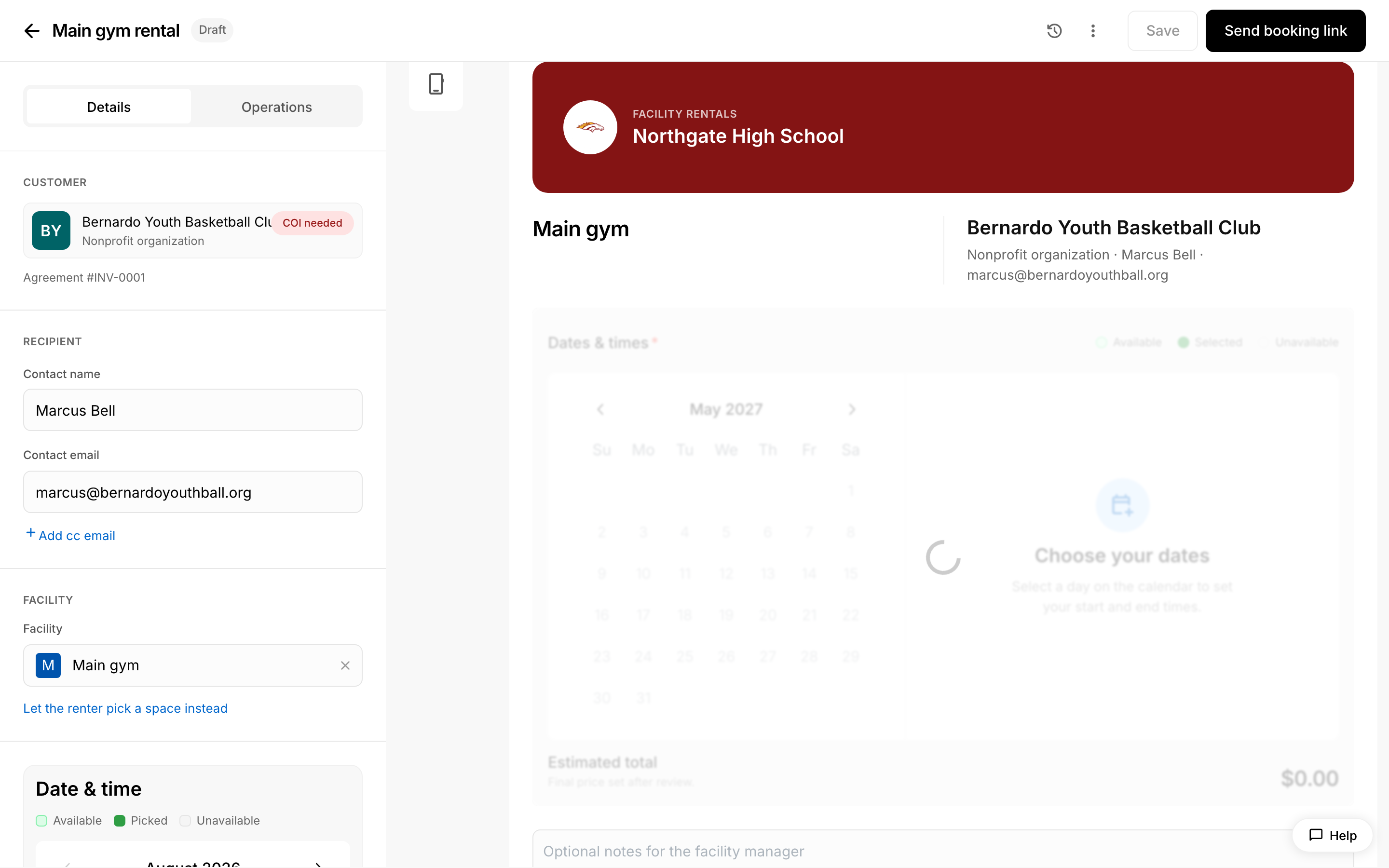 The rental agreement a renter receives.
Once you accept the request and send the agreement, the renter's page updates to Awaiting signature and shows a Sign to confirm section.
Your side is already signed: the renter sees a line reading "Signed by [name] for [your organization]" with the date, because sending the agreement counts as your signature.
- The renter reads the agreement. Under the signature field is the line "By signing you agree to the rental agreement." The words rental agreement are a link. If you uploaded a facility use agreement, the link opens that PDF. If you did not, it opens your list of facility rules instead.
- They sign their name. They can type it into the Your signature field, or press the TAP button beside the field to fill in their name automatically.
- They press Sign agreement.
The section then collapses to a short Signed record: the renter's signature and organization with the date, and your signer and organization with the date. The link back to the agreement stays there. If you used an uploaded PDF, that link now opens the signed copy — the original document with a signature certificate page added — and the renter can download it from the viewer.
What if the renter's typed name is rejected?
If you set the agreement to require the named primary contact to sign, the typed name has to match that contact's name. If it does not, the renter sees a message telling them their signature must match that name, and the Sign agreement button stays unavailable. Capitalisation does not matter. If someone else at the renter's organization needs to sign instead, update the contact name on the booking before they try again.
Stage 4: The renter pays the deposit or the balance
Once the agreement is signed, the page moves to Deposit is ready and shows the amount owed, who it is owed to, and a breakdown of the charges beneath it.
- If a deposit applies and it is smaller than the full amount owed, the renter chooses whether to pay the deposit or pay in full. The deposit is selected by default, because that is the smallest payment that confirms the booking. If the deposit is the same as the full amount, there is no choice to make and the renter simply pays.
- They pay by card, plus any express payment option their browser offers.
- If bank transfer is available for your organization, they can choose that instead of paying online by card.
If the renter is not the person who pays, they can send the bill to their finance office from this page.
What happens when a renter sends the bill to their finance office?
The finance contact receives an email with a link to the same booking page. Their version of the page opens focused on payment, and the option to forward the bill again is hidden so the invoice does not get passed around. Everything they need — the dates, the breakdown, the amount owed and the pay form — is on that page.
Can a renter pay by bank transfer instead of a card?
Yes, when bank transfer is available for your organization. A bank transfer does not clear immediately: it takes roughly one to four business days. In the meantime the renter's page replaces the pay form with a notice saying the transfer is processing, so they do not pay twice. The booking page updates once the money arrives.
What if a card payment fails?
The page shows a message explaining the payment did not go through, and the renter can try again from the same page. Nothing about the signed agreement changes — they stay at the payment stage until a payment succeeds.
Stage 5: Confirmation
After a successful payment the page shows the booking as confirmed, with the amount paid, a receipt and the completed signatures. If the renter only paid the deposit, the remaining balance stays payable from the same page, so they can come back and settle it later. The renter also receives payment confirmation by email.
What if the total on the page is different from the estimate the renter saw?
If you set an agreed price for the booking instead of letting the rate and add-ons add up, the renter sees that agreed figure as a single Total line rather than an itemised breakdown, with the originally calculated amount shown struck through beside it. This is expected — it is how an agreed price is presented, so the renter can see both what the standard rate would have been and what they are actually being charged.