
Managing Rental Requests & Agreements
Review a rental request, adjust its terms, approve or decline it, and follow the booking through signing and deposit to confirmed.
 A rental agreement and its lifecycle.
Managing Rental Requests & Agreements
When someone asks to use one of your facilities, that booking arrives as a rental agreement. This article shows you how to review the request, change the terms, approve or decline it, and follow it through the renter's signature and deposit to a confirmed booking.
A rental agreement is simply the record of one booking: which facility, which dates and times, what it costs, and who signed for it. Each agreement moves through a set of states, and the state only changes when you or the renter takes an action.
What are the rental agreement states?
Every rental shows its state as a status pill on the rental and in your rentals list:
- Draft — you are still framing the rental (facility, dates, rate, add-ons, deposit). Every rental you create starts here.
- Sent — you sent a booking link and are waiting for the renter to complete their request.
- Submitted — the renter has submitted their requested times and details. It is your turn to review.
- Awaiting signature — you approved the request, and the renter needs to sign.
- Signed / Awaiting deposit — the renter signed. If a deposit is set, the rental waits for that payment.
- Confirmed — the booking is locked in.
There are also three end states: Cancelled, Declined, and Expired (an unsigned agreement that passed its expiry date).
Editing and saving the rental's terms never moves the status forward or backward, and no edit can create or backdate a signature. Only the actions described below change the state.
How do I review and change a request?
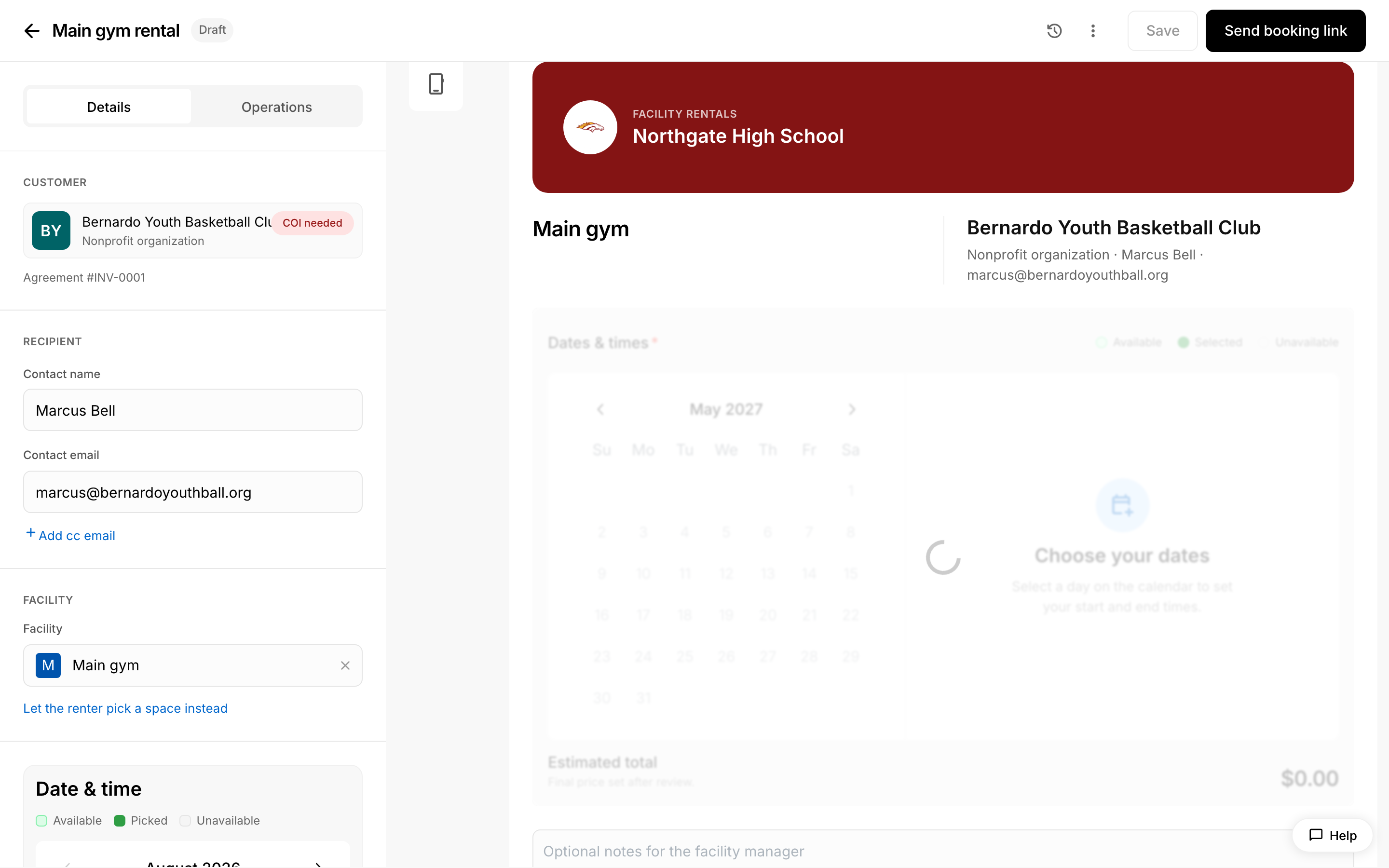
Open the rental from your rentals list. The editor is on the left. On the right is a live preview labelled Renter View, so you see exactly what the renter sees. Beside the preview is a display toggle with a desktop icon and a phone icon — use it to check the mobile version of the page.
There is no separate "counter-offer" step. To request changes, you edit the terms yourself before approving, and your edits become the agreement the renter signs. You can change:
- The facility and any sub-facilities.
- The dates and times.
- The rate and any add-ons.
- The deposit and the agreement expiry.
- A fixed custom total (see below).
While the rental is still Submitted, the signature area in the preview is faded and inactive. That is intentional — it shows the renter what comes next, and nobody can sign until you approve.
If the rental is linked to a customer, the contact name and email you type on the agreement are also saved to that customer's primary contact, so they are filled in for you next time.
How do I add several dates at once?
Once a facility is selected, the editor shows a calendar for entering dates.
- Tap each day you want on the calendar.
- Each day is added to the list of dates with a default start and end time.
- Adjust the start and end time on any date that differs.
This lets you build a multi-date rental — a team that needs the gym every Saturday for a month, for example — in one pass. Days that aren't bookable can't be selected, and conflicts with existing bookings are flagged as you add dates.
How do I set a fixed negotiated total?
Sometimes you agree on a flat price that doesn't match the calculated rate: a returning-renter discount, a bundled deal, or a flat community rate. Turn on Set a custom total in the rental's pricing section.
- The field pre-fills with the current calculated total, so you only change the number.
- Enter the fixed total you agreed on.
- Add an internal note explaining why (for example, "Returning renter discount"). This note is for your records and is never shown to the renter.
The custom total replaces the calculated subtotal everywhere the rental's price appears, including what the renter sees and pays. If your custom total is lower than the calculated amount, the original is shown struck through so the discount is obvious. A higher total (a surcharge) does not strike the original. Choose Reset to calculated total at any time to remove the override.
Two things to keep in mind:
- The custom total is not recalculated if the rate or dates change later. When the numbers drift apart, you see a notice — it doesn't block anything, it just lets you decide whether to update the total or reset it.
- A custom total of $0 is allowed for a comped rental, with a reminder that the rental will be free.
How do I approve a request?
Approving and sending are one action: you approve from the editor's header, which signs the agreement on your side and sends it to the renter.
- Finish any edits to the terms first — what you approve is what the renter countersigns.
- In the rental editor's header, choose Approve.
- Confirm in the dialog that appears.
The rental moves to Awaiting signature, the renter is emailed to countersign, and the status pill updates in place. Because your side is already signed, the renter lands directly on the signing step, where your signature appears as a single line: "Signed by [your name] for [your institution]" with the date.
If you see an error saying the rental has no recipient, the agreement has nowhere to go. Add a contact email to the customer or to the recipient on the rental, then approve again.
How do I decline or cancel?
From the rental's kebab menu (the ⋮ button) you can:
- Decline a request that is submitted or awaiting signature. The renter is emailed that the request was declined.
- Cancel an active rental at any stage, including a confirmed booking. The renter is emailed the cancellation.
- Resend the invitation or the signing request, or re-open an expired agreement.
How does the renter sign?
The renter signs on the public rental page, in a section headed Sign to confirm. They type their name in the Your signature field — or tap the TAP button in that field to fill in their own name — and then choose Sign agreement. Pressing that button is the agreement; there is no separate checkbox.
The line under the field reads "By signing you agree to the rental agreement," and what that link opens depends on your setup:
- If you have uploaded a Facility Use Agreement, the link opens that PDF, and your individual facility rules are not listed separately.
- If no document is uploaded, the link opens your facility rules in a window on the page.
Either way, what the renter accepted is frozen as a snapshot at the moment of signing, so later changes to your standing rules or document never alter an already-signed booking. After signing, the rental shows a short signed record — both signatures with their dates — and a link back to the exact thing they agreed to. In document mode that link opens the signed copy: the original PDF plus a signature certificate page, which can be downloaded.
Can I sign on the renter's behalf?
No. The renter's signature field is always inactive for you, both in your editor preview and in the pre-approval preview the renter sees. Only the renter can sign their side.
What if the renter's typed name doesn't match?
If the rental requires the named primary contact to sign, the typed name must match that contact's name. Anything else is rejected with a message telling them the name their signature must match. Either the right person signs, or you update the recipient name on the agreement first.
What happens after signing?
That depends on whether a deposit is set:
- With a deposit — the rental moves to Awaiting deposit. The renter pays at the rental link, and paying the deposit confirms the booking. Choose Send deposit reminder from the kebab menu to email them a nudge.
- Without a deposit — signing confirms the rental immediately. Anything still owed becomes an ordinary outstanding balance that you collect after confirmation, rather than something that holds up the booking.
Renters are also emailed when you issue an invoice on the rental and when a payment is recorded against it.
Why can't I delete a rental?
A rental with any recorded payment — a deposit, a balance payment, or one you recorded by hand — cannot be deleted, so payment history is never left without its booking. Cancel the rental instead. Cancelling works at any stage and notifies the renter.