
Managing Waitlists & Attendance
See who is waiting for a spot, move people in, remove entries, download the list, and record who attended each session.
When a registration fills up, you can keep collecting interested participants on a waitlist and move them into spots as those spots open. After following this article you will be able to see who is waiting, send or hand out open spots, remove people who are no longer interested, download the waiting list, and record who actually attended each session. This is what you want when sign-ups hit their limit and you expect cancellations, or when you decide to add a few more spots.
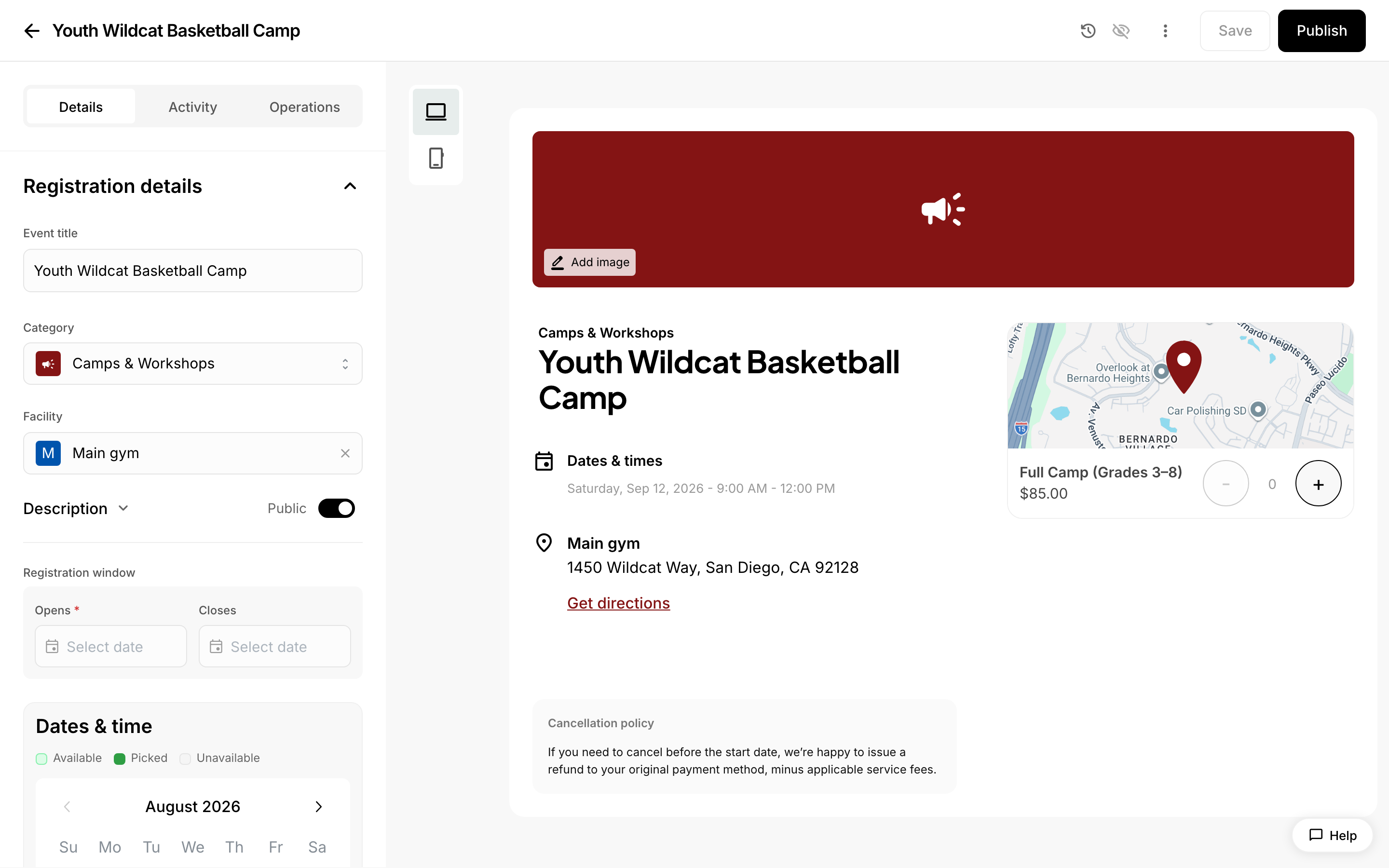 Capacity and waitlist settings on a registration.
A few terms used throughout:
- Capacity is the maximum number of participants a registration accepts.
- A waitlist is the ordered list of people who wanted in after capacity was reached.
- A session is one date or meeting of a registration. A registration that meets on several dates has several sessions.
Turning the waitlist on
A waitlist only exists if you enable it on the registration and give the registration a capacity. You will find both in the registration's capacity and waitlist settings, shown above. Without a capacity there is nothing to fill up, so no one is ever placed on a waitlist.
Once the registration reaches capacity, anyone who tries to sign up joins the waitlist instead of registering. They are kept in the order they joined.
How spots get filled
When a spot opens — someone cancels, or you raise the capacity — what happens next depends on your waitlist settings:
- Auto-offer turned on. The next person waiting is emailed an offer automatically and their status becomes Offer Sent. The offer is good for the offer window you set, measured in hours. If they do not accept before the window closes, the offer lapses and the spot can go to the next person.
- Auto-offer turned off. Nothing is sent. The spot stays open until you move someone into it yourself.
What the statuses mean
Each waitlist entry shows one status in the Status column:
- Waiting — on the list, no spot offered yet.
- Offer Sent — an offer email has gone out and the offer window is running.
- Offer Accepted — they took the spot.
- Offer Declined — they turned the spot down.
- Offer Expired — the offer window closed before they answered.
- Promoted — you moved them into a spot directly.
Cancelled entries are not shown in the table at all.
Working with the waitlist table
Open the registration from your dashboard and go to its waitlist. Each row shows Date joined, Participant (name and email), Status, and Registration type — the sign-up option they were waiting for. The newest entries appear first. Dates and times are shown in your organization's time zone, and a participant with no name on file shows as "No name" above their email address.
- Type a name or email in the Search waitlist box to find one person. The table narrows as you type, and shows "No matching waitlist entries." when nothing matches.
- Click a participant's name or email to copy their email address to your clipboard. A Copy email label appears when you hover.
- Click Date joined to sort by it if you want to confirm the order people joined in.
If no one has joined yet, the table reads "Waitlist entries will be listed here after people join the waitlist."
Moving someone into an open spot
Promoting a participant puts them straight into the registration and creates a registration for them at no charge. Their waitlist entry is then marked Promoted. Use this when you want to choose who gets the spot instead of letting the offer email go to whoever is next in line.
Promotion only works while there is room. If the registration is already full, promotion is blocked — free up a spot or raise the capacity first.
Removing someone from the waitlist
Do this when someone tells you they are no longer interested, or when you are tidying up an old list.
- Find the person in the waitlist table.
- Click the ⋮ menu at the end of their row.
- Choose Remove from waitlist. The row disappears from the table right away.
- A message appears reading "Removed from waitlist" and naming the email address you removed. It includes an Undo option for a few seconds.
- Do nothing, and the removal is finalized once that message clears. The menu briefly reads "Removing..." while it finishes.
Removing someone does not email them. If the removal fails you will see "Error removing from waitlist" instead, and the row comes back so you can try again.
What if I remove the wrong person?
Click Undo in the message that appears right after you remove them. The entry comes back in the table and keeps its original place in line, because nothing has actually been deleted yet.
Once that short window passes, the removal is permanent. There is no way to put the entry back from the dashboard — the person would have to join the waitlist again, which gives them a new date joined and puts them at the end of the line. Two things to keep in mind: if you leave or close the page while the message is still showing, the removal goes through, and if you want to be careful, wait for the message to clear before navigating away.
Downloading the waitlist
- Open the registration's waitlist.
- Click Export.
- A spreadsheet file (CSV) downloads with one row per waitlist entry: name, email, registration type, status, and date joined.
The download always contains those five details, whichever columns you have chosen to show in the table. It matches what the table currently holds, so it is a good snapshot to share with a coach or program lead who does not use the dashboard.
What the person on the waitlist sees
Someone who joins the waitlist gets a confirmation email so they know they are on the list rather than registered. If a spot is offered to them, the email contains a secure link to accept or decline. Accepting signs them up. Declining, or doing nothing until the window closes, releases the spot for the next person.
Marking attendance
Attendance is recorded per session, so on a registration that meets on several dates each participant is marked separately for each date. For any session you can mark a participant present or absent and add a note, and you can mark a whole session at once rather than one person at a time.
Attendance can be recorded by staff signed in to the dashboard, or by helpers using the registration's share link. The share link lets someone take attendance without having a dashboard login, which is useful for a volunteer at the door.
Exporting attendance
Export the registration to download a spreadsheet of participants that includes a Yes/No column for each session. That gives you one file with participant details and a full attendance record side by side.
What happens if someone does not accept their offer in time?
The offer simply lapses. Their status changes to Offer Expired, they are not registered, and the spot becomes available again so the next person in line can be offered it. Nobody loses their place by missing an offer, but they do lose that particular spot.
What if I want to add spots instead of waiting for a cancellation?
Raise the registration's capacity and save. If the waitlist is enabled and the new capacity is higher than the number of people currently registered, the people waiting are notified that room has opened up. You do not need to contact them yourself. If you raise the capacity but the registration is still full — say you added one spot and someone had already taken it — no notice goes out.
One limit to know about: you cannot set a sign-up option's capacity lower than the number of spots already taken in that option. If you try, the save is rejected and the message names the option and how many have already signed up.
Why can't I promote someone from the waitlist?
Almost always because the registration is at capacity. Promotion is blocked when there is no open spot, since it would push the registration over its limit. Either cancel a registration to free a spot, or raise the capacity, then promote.
Why is someone missing from the waitlist table?
Two reasons. Entries you have removed drop out of the table right away, and entries that were cancelled are not shown at all. Both are also left out of the Export file, so the download reflects only people still actively waiting. If you expected to see someone and cannot, search by their email address first — the search covers both name and email, and the entry may have a different name on it than you expect.
What if a participant misses one session of a multi-date registration?
Mark them absent for that session only. Attendance is stored session by session, so an absence on one date does not change their registration or their attendance on any other date, and the exported spreadsheet shows exactly which sessions they attended.
What happens to the waitlist if I delete the registration?
Deleting the registration deletes its waitlist entries with it, so download the list first if you want a record of who was waiting. Deletion is only possible when the registration has no live sign-ups; if any remain, you will see an error telling you the registration has purchases, and nothing is deleted.
One note on accuracy: the exact button and tab names for marking attendance are not confirmed in the material behind this article, so the attendance sections above describe what the feature does rather than naming each control.