
Creating a Free Registration
Set up a free sign-up in Admittee: capacity, waitlist, dates, and publishing.
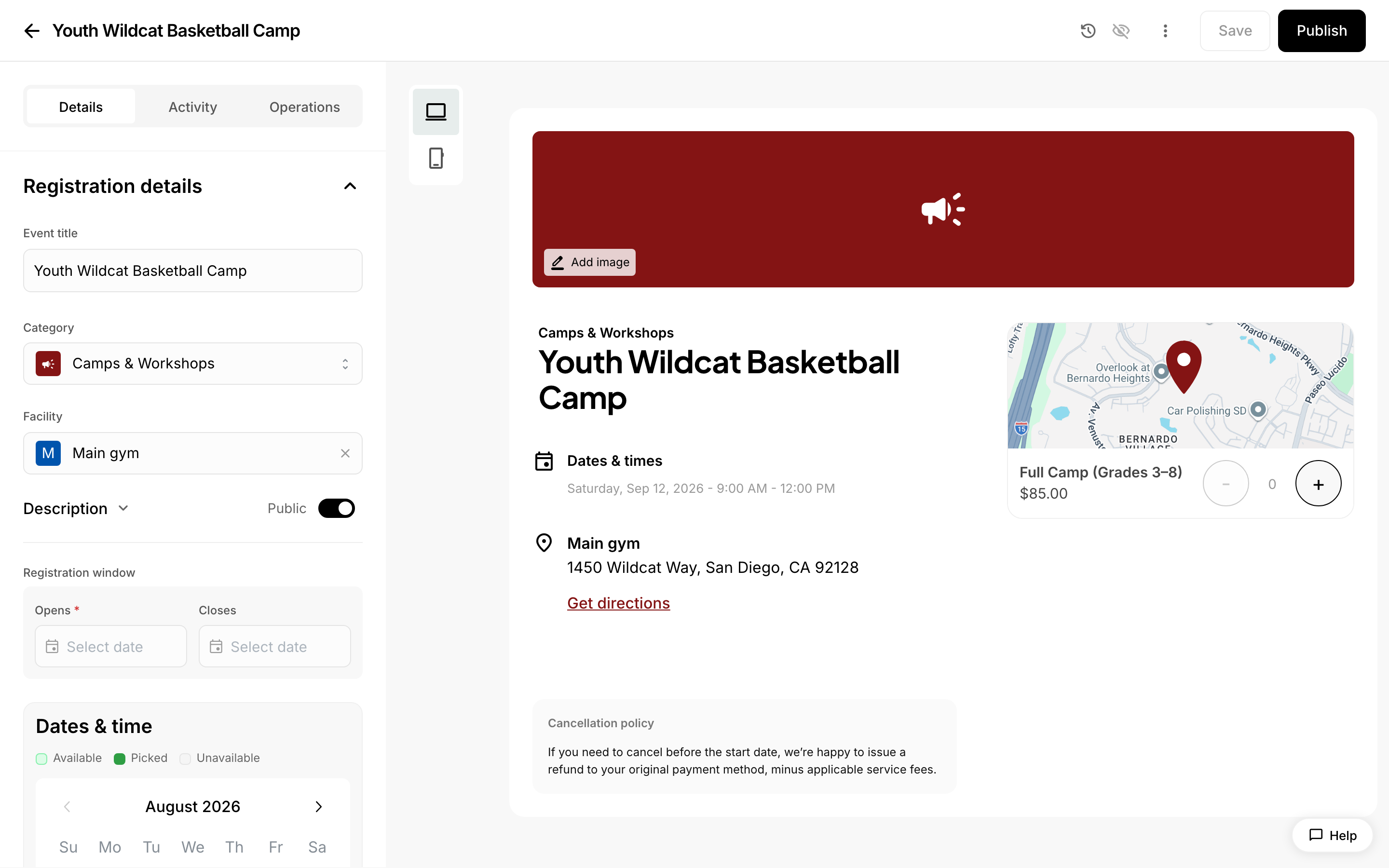 Building a registration.
If you are collecting sign-ups for something people do not pay for — a free clinic, a parent night, a summer camp your organization funds — you can set it up in Admittee as a free registration and share a link. This article walks you through creating it, limiting how many people can sign up, turning on a waitlist so you can still collect names after it fills, and publishing it.
A registration is a sign-up sheet for an activity: people enter their details and reserve a spot. A registration type is one of the options a person chooses when signing up (for example "Grades 3–5" or "Full week"). A registration is free when every registration type is priced at 0, so nobody is asked to pay.
Create the registration
- From the registrations dashboard, start a new registration.
- Choose a registration kind:
- Standard registration — a camp, workshop, conference, or activity with specific dates and a location.
- Season registration — ongoing participation over a longer span of time, defined by a registration window rather than fixed session dates.
- Enter a title and pick a category.
- Continue to the details page to finish setup.
Set the details
In the registration details editor, fill out the core fields:
- Registration window — set when registration Opens and Closes. An open date is required before you can publish; the close date is optional.
- Dates and sessions — for a standard registration, add the event date(s) and times. Attendance is tracked per session. Season registrations skip this and run off the window instead.
- Who can register — optionally restrict by a minimum and maximum grade. Eligibility is checked against the registrant's current grade.
- Registration types — add at least one type. To make the registration free, leave the price at 0. You can also set a capacity on an individual type here.
Your changes are saved to the registration as you go. Publishing is a separate step, so nothing is visible to the public until you choose to publish.
Limit how many people can sign up
Overall Capacity is optional. If you leave it unset (or at 0), the registration is unlimited and never fills up. Set a number to cap the total registrations across all types.
You can also cap an individual registration type — useful when you want, say, 20 spots for one age group and 30 for another.
What if I need to lower a capacity after people have signed up?
You cannot lower a registration type's capacity below the number of spots already taken in that type. If you try, the save is rejected and Admittee tells you how many people are already registered in that type, so you know the lowest number you can use. To go lower than that, you would first need to cancel some of those sign-ups.
Turn on a waitlist
Turn on the waitlist if you want people to be able to keep signing up after the registration is full. A waitlist is a queue of people who wanted a spot that was not available — they are not registered, but you have their details and can offer them a spot if one opens.
When the waitlist is on:
- New registrants join the waitlist once the registration is full, instead of being turned away.
- If you later raise the capacity above the number of active registrations, waitlisted people are notified automatically that spots have opened.
Waitlisted people are notified in the order they joined.
Do I need a capacity for the waitlist to work?
Yes. The waitlist only comes into play once a registration is full, and a registration with no capacity set is unlimited — so it never fills, and nobody is ever waitlisted. If you want a waitlist, set a capacity.
How long does a waitlisted person have to claim a spot?
A waitlist offer expires after a set amount of time, but this article cannot confirm the exact length. Check the waitlist settings in the registration editor for the current offer window.
Add a custom form (optional)
You can attach a custom field form to collect extra information at sign-up — a medical note, a t-shirt size, a parent phone number.
If you publish without a form, or with a form that has no fields in it, Admittee asks you to confirm first. That prompt is only a check that you meant to skip it; you can confirm and continue.
Publish
You can publish once the registration has:
- a title,
- at least one registration type with pricing (0 counts — that is what makes it free), and
- a registration open date.
Capacity is not required to publish.
- Select Publish.
- Review any pre-publish warnings and confirm. If something required is missing, Admittee lists it — and for a missing open date, selecting the item takes you straight to the Registration window → Opens field.
- Once published, the Publish button becomes Share so you can distribute the link.
What if the Publish button will not work for me?
Publishing and unpublishing require publish permission on your account. If Admittee will not let you publish, ask an admin on your team who has that permission to publish it for you, or to grant you the permission.
Track it after publishing
The registration's detail page has tabs for Details, Waitlist, Attendance, and Reports.
Attendance is counted per person across all the spots they hold. So if a parent signs up several children at once, or a person holds more than one registration type, each person's attendance for each session day still shows correctly rather than being split across their sign-ups.
Deleting a registration
You can delete a registration only while it has no live sign-ups. If people are registered and have not been cancelled, the delete is blocked — cancel and refund those sign-ups first, then delete.
Deleting also removes the registration's waitlist entries, its custom field form, and its banner image.
What attendees see
On the public page, attendees pick a registration type and enter their name and email to reserve a spot at no charge. When a capped registration is full and the waitlist is on, the page shows a waitlist form instead, and anyone who later receives an offer can claim the opened spot before it expires.