
Creating & Sending Game Contracts
Build a head-to-head game contract by adding games with dates, facilities, and pricing, set the fees, and send it to the opposing school to sign.
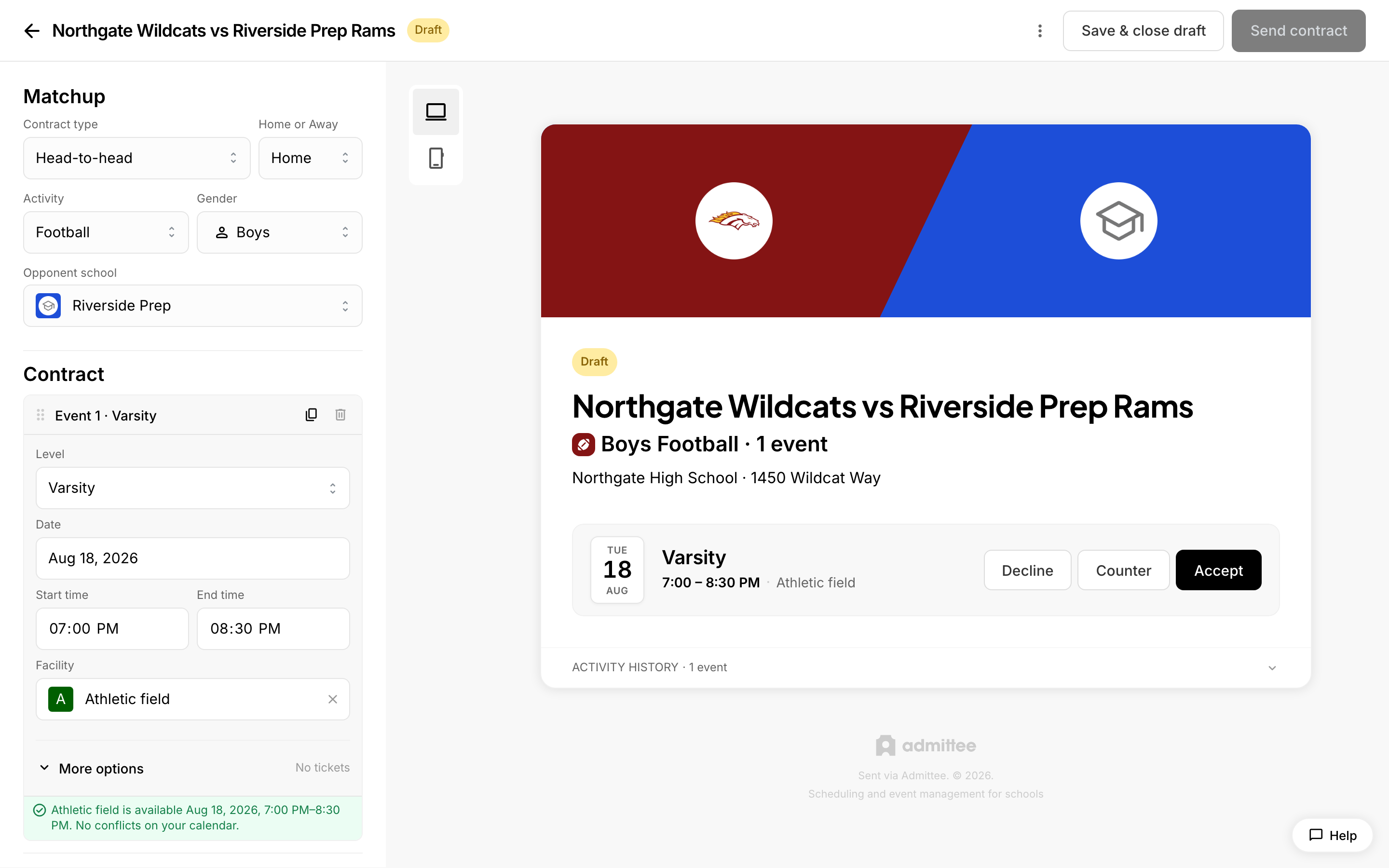 Building a game contract.
Game contracts let you schedule athletic matchups with another school, set the financial terms, and collect a signature — all in one document. Build a head-to-head contract, add games, set fees, and send it for signature. (Invitational contracts are coming soon and currently disabled.)
Start a new contract
- Open the contracts area of your dashboard and create a new contract.
- Under Contract type, choose Head-to-head (Invitational is disabled for now).
- Set Home or Away to Home (Away is coming soon).
- In the Matchup section, pick the Activity (sport) and Gender (Boys, Girls, or Coed). These apply to the whole contract.
Add games
Each contract needs at least one game. For every game card you set:
- Level — pulled from your school's configured levels (e.g. Varsity, JV).
- Date, Start time, and End time.
- Facility (and Sub-facility if the facility has them). When you fill in date, facility, and times, an availability row checks your calendar and flags any conflicts.
To schedule multiple games in one contract, use the Duplicate event icon on a game card — it copies the game so you can change the level or date. Use the delete icon to remove a game; the contract always keeps at least one. Drag the handle to reorder games.
Set fees and pricing
Open More options on a game card to set, per game:
- Event fee — the contractual amount the visiting school owes. Defaults pull from your fee settings when a match exists.
- Forfeiture fee — the penalty charged if the game is forfeited.
- Ticket pricing — sets the public ticket page once the contract is signed. Check Free admission to skip ticketing. Ticket prices are not shown to the opposing school.
- Special conditions — optional notes (parking, equipment, payment instructions).
Fees and prices are stored per game. If a game has no matching default fee or ticket type when you send, a gate walks you through setting one first.
Recipient and terms
In the Recipient section, add the opposing school (or pick a saved opponent), the contact name and email, optional Cc addresses, and an expiry date. You can require that only the primary contact may sign. Standard agreement terms and the governing body line are prefilled from your institution defaults and shown on the contract itself — there is no separate terms field in the editor.
Send for signature
Click Send contract. Admittee validates the matchup, games, and recipient email, then emails the opposing AD a link to the contract. They review it, decide each game (accept, decline, or counter-propose), and sign. Once both sides have signed, the contract is signed, ticket pages go live for your priced games, and any event fee moves into the payment workflow.