
Approving or Rejecting Scheduling Requests
Open an opponent's scheduling request to turn it into a pre-filled contract or decline it, and resend or withdraw the requests you've sent.
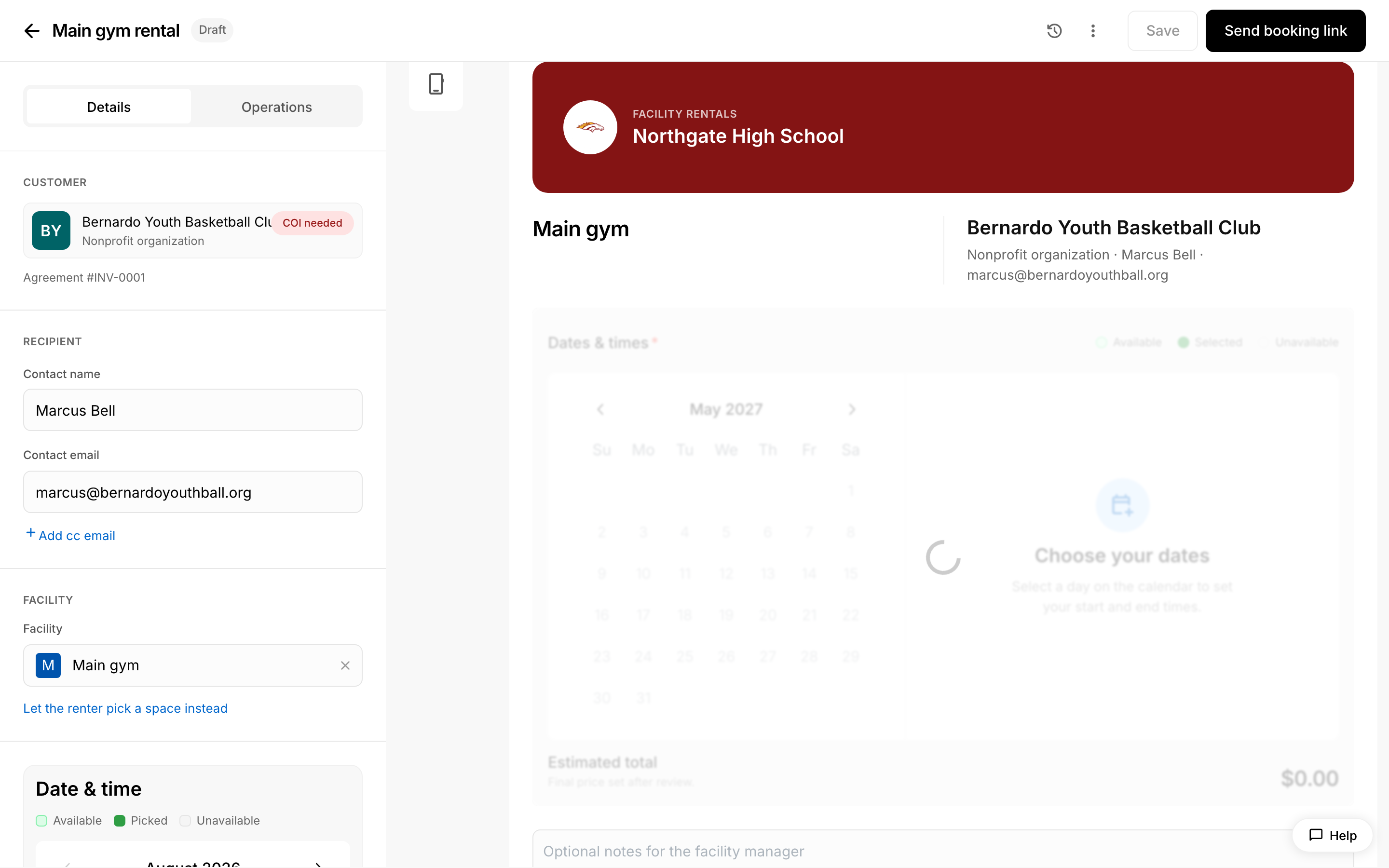 Reviewing a facility request.
Approving or Rejecting Scheduling Requests
When an opponent asks you to schedule a game, their request appears on your Admittee dashboard. To approve it, open the request — this starts a game contract pre-filled with what they asked for, which you complete and send back. To reject it, decline the request, and the sender is notified by email. Requests you've sent to other schools show up in your Contracts list, where you can resend or withdraw them.
What is a scheduling request?
A scheduling request is how one athletic director (AD) asks another school to put together the details for a game before a formal contract exists. The request captures what the sender is asking for:
- Opponent — the school and contact who sent it (or that you sent it to)
- Activity, gender, and level — for example Girls Basketball, Varsity
- Requested date — a specific date, a date window, or open/to-be-decided
- Notes — any free-form context the sender added
A request stays active until it's answered or expires. By default it expires 14 days after it's sent.
Reviewing an incoming request
When an opponent sends you a request, Admittee surfaces it on your dashboard. Open it to see the full details — who sent it, the activity, gender, and level requested, the date preference, and any notes — so you can decide whether you can host the matchup.
From there you have two choices: approve the request by opening it into a contract, or decline it.
Approving a request
Approving a request means turning it into a game contract you send back to the opponent.
- Open the request.
- Admittee starts a new game contract pre-filled with the details the opponent asked for (activity, level, and date preference).
- Confirm or adjust the event date and time, set the location and facility, and add any pricing or terms.
- Send the contract to the opponent.
Once you return a contract, the request is marked as responded and the rest of the process continues on the contract itself. For how the contract is negotiated and signed after this point, see Negotiating Game Contracts.
Declining a request
If you can't host the matchup, decline the request. The sender receives an email letting them know the request was declined, and you can optionally include a short note. Declining doesn't create a contract; the request simply closes out.
Requests you've sent
Requests you've sent to other schools appear as rows in your Contracts list with the status Awaiting host response. Hover the status to see who it went to, when it was sent, when it expires, and exactly what you asked for.
Each of these rows has a menu (the three-dot icon) with two actions:
- Resend request — re-emails the request with a fresh link. The previous link stops working. Use this to nudge a host who hasn't responded yet.
- Withdraw request — pulls the request off your list and marks it cancelled. The host isn't sent a notification; if they open the old link, they'll see the request is no longer active. You can always send a new one later.
What happens after a request is answered
- The host returns a contract — the request row is replaced by the contract, and you pick up the negotiation there.
- The host declines — you'll see the status change the next time your Contracts list refreshes.
- The request expires — if no one responds before the expiration date, the request drops off your active list automatically.
To start a new request or contract from scratch, see Creating and Sending Game Contracts.