
Creating a Fundraiser Event
Create a dated fundraiser event, like a banquet or fun run, by picking a category and date and optionally setting a fundraising goal.
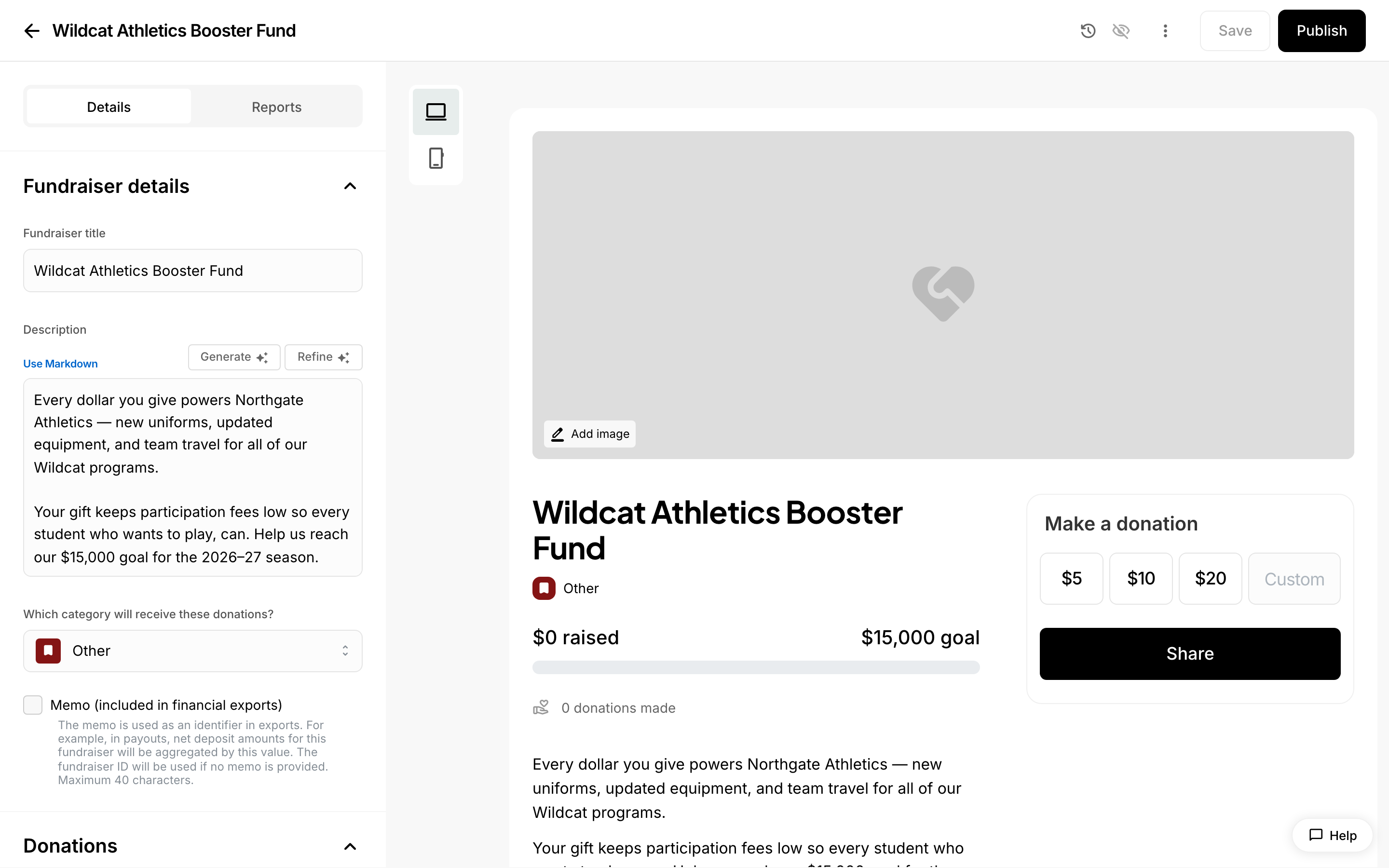 A fundraiser page with its goal and donation options.
Creating a Fundraiser Event
A fundraiser event is a fundraiser with a specific date and location — like an annual banquet, a gala, or a fun run. If you want an ongoing fundraiser that accepts open donations with no fixed date, create a donation page instead; both start from the same place.
Where to start
- In your dashboard sidebar, click Fundraising.
- Click New fundraiser at the top of the page. (If you haven't created any fundraisers yet, you'll see a Create fundraiser button in the middle of the page instead.)
- The Create a fundraiser window opens.
On mobile, tap the + button from the Fundraising tab to open the same window.
Fill in the fundraiser details
The Create a fundraiser window asks for the following, in order:
- Title — a name for your fundraiser (for example, "Annual Banquet"). If you leave this blank, the fundraiser is named after the category you pick.
- Fundraiser kind — choose between:
- Fundraiser event — "Fundraiser with a specific date and location." This is the default, and the type these steps create.
- Donation page — "Ongoing fundraiser with open donations."
- Goal amount (optional) — a dollar target for the fundraiser (for example, $2,000.00). You can skip this entirely or change it later.
- Facility — where the event takes place. Pick from your school's facilities, or choose Add new facility to create one on the spot. If the facility has sub-areas, you can select those too.
- Category — required. Pick the category the fundraiser belongs to (for example, Baseball), or add a new category from the dropdown.
- Date — required for a fundraiser event. Pick the day the event happens.
- Start time and End time — default to 10:00 AM and 12:00 PM; adjust them to match your event.
The Create fundraiser event button stays grayed out until you've chosen both a Category and a Date.
Create the event
Click Create fundraiser event. You're taken to the fundraiser event's details page, where you can finish setting it up.
Configure the goal and donation settings
On the fundraiser event's details page you can fine-tune how donations work:
- Set a fundraising goal — check this to set or change a dollar goal (for example, $2,000). When a goal is set, supporters see a progress bar showing how much has been raised toward it. Uncheck it to run the fundraiser without a public goal — the amount raised is shown on its own.
- Donor wall to acknowledge supporters — checked by default. When enabled, the fundraiser's public page includes a wall recognizing the people who have donated.
- Fundraiser options — define what supporters can buy or give, the same way you'd set up ticket options for an event.
What supporters see
Your fundraiser event gets its own public page where supporters can give using the Donate now button. If you set a goal, the page shows progress toward it, and if the donor wall is on, supporters who give are acknowledged there. After donors confirm payment, they receive an email confirmation.
Tracking your fundraiser
Back on the Fundraising page, each fundraiser card shows the amount raised and the goal (for example, "$0 raised — $1,000 goal"), and a combined progress bar at the top of the page totals all of your active fundraisers. Open the fundraiser any time to update its details or view its reports.