
Managing Facility Schedules
See every booking at your facilities in one calendar, spot conflicts, and move or resize events to fix them.
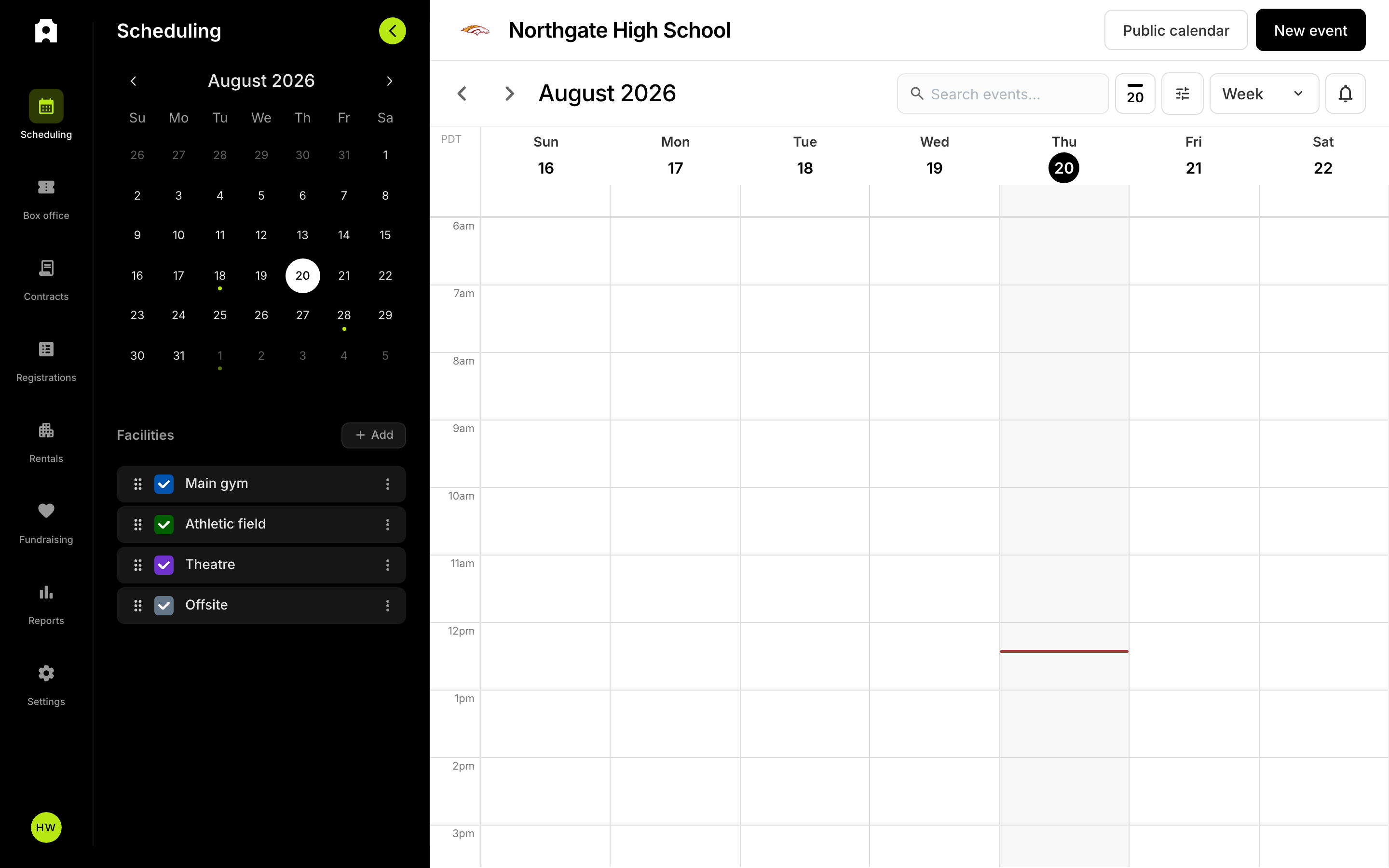 The scheduling calendar with facilities and events.
Managing Facility Schedules
After this article you will be able to see everything booked at your facilities in one calendar, tell at a glance when two bookings collide, and move or resize an event to fix it. This is the screen to use when someone asks "is the gym free Thursday night?" or when you need to shift a practice because a game ran long.
Go to Dashboard, then Scheduling.
A few terms you will see:
- A facility is a building or space you book, such as "Main Gym."
- A sub-facility is a space inside a facility, such as a single court or meeting room. Some screens call this a room.
- A buffer is the setup and teardown time you reserve around an event so back-to-back bookings don't collide.
- A conflict is two bookings that need the same facility at the same time, buffers included.
Viewing your facility calendar
The calendar shows everything booked at your facilities, color-coded by facility:
- Ticketed events, such as games and ticketed activities
- Fundraiser events
- Non-ticketed and internal events, such as practices and staff activities
- Rentals, including rentals still awaiting approval
- Registrations and programs scheduled at your facilities
- Campus-wide markers, such as "No school — Thanksgiving break," shown as all-day banners
Use the facility filter to hide the facilities you don't care about right now.
A few display details worth knowing:
- Time-grid views are divided into 15-minute slots.
- The Day and Week time grids run from 6:00 AM to the end of the day. Anything that begins before 6:00 AM is drawn starting at the top of the grid.
- Away events show the opponent's name when that opponent is on your roster. Otherwise the event's own title is used.
- U.S. federal holidays and past days are shaded so you can tell them apart.
Choosing a view
Use the view menu at the top right of the calendar, next to the Today button, to switch between:
- Day — one day in detailed time slots.
- Week — a full week in time slots.
- Month — a monthly overview.
- Agenda — a running list of events.
- Timeline — a single day laid out across your facilities, one lane per facility.
Timeline is the fastest way to answer "what else is in this building today?"
Moving around the calendar
- Click the left or right arrow at the top left to step backward or forward. The step matches your view — one day in Day, Agenda, and Timeline, one week in Week, one month in Month.
- Click Today to jump back to the current date. The button shows today's date number.
- In Agenda view, the arrows skip to the next day that actually has an event, searching up to 30 days. If nothing is found in that range, the calendar moves by a single day.
Staying on top of conflicts and approvals
The notification bell above the calendar collects everything that needs your attention — bookings waiting for approval and scheduling conflicts. Conflicts are grouped by whether they are still unresolved or have already been cleared.
- Click the bell. A badge on it shows how many items need attention.
- Click a notification. The calendar jumps to that date and opens the event so you can see what was flagged.
- On a phone, the notifications open as a sheet from the bottom. Clicking one switches you to the scheduling screen in Day view.
If there are more items than the list can show, you will see a note that the list is truncated.
Understanding facility buffers
A buffer holds the facility before and after an event for setup and teardown. Buffers can be set at three levels:
- Facility-level buffers apply to every event at that facility.
- Sub-facility-level buffers override the facility default for one space inside it.
- Event-specific buffers override both when a single event has unusual needs.
Buffers change how an event is drawn on the calendar — the block includes the buffer time — but they do not change the event's actual start and end times.
Fixed and "rest of day" buffers
A buffer can be a fixed length, chosen from presets (None, 15 min, 30 min, then 1 to 8 hours). When you edit an individual event (ticketed, non-ticketed, registration or rental), each buffer also offers a "rest of day" option under a Rest of day group:
- From start of day (start buffer) — holds the facility from the start of the day up to the event.
- Until end of day (end buffer) — holds the facility from the event through the end of the day.
Facility and sub-facility default buffers are fixed lengths only.
Use a "rest of day" buffer when a space needs to stay blocked for the whole remainder of the day rather than a set number of hours.
Where to find buffers on a ticketed event
On a ticketed event, the start and end buffer settings sit under a collapsible More options panel in the event's scheduling section. Expand it to change them. When a buffer other than None is in effect (including one inherited from the facility) and the panel is collapsed, a short summary appears next to the toggle — for example "Buffer: 30 min / 1 hr" — so you can see the current setting without expanding.
How conflict detection works
Admittee checks automatically for events that overlap at the same facility, including their buffers, and it checks both ticketed and non-ticketed events. When a conflict exists:
- You see a visual warning on the calendar.
- The conflicting event is marked so you can identify it.
- You resolve it by rescheduling one of the two events.
The check compares buffered time windows. If Event A has a one-hour end buffer and Event B starts during that buffer, the two are flagged — even though their actual times don't touch.
If an event occupies more than one facility, every facility it uses is checked. A time slot counts as available only when every facility and space that event needs is free.
One thing we could not confirm: how conflicts are treated when two events at the same facility use different sub-facilities. Availability is requested for the specific spaces a booking occupies, but the exact rule for separate spaces inside one facility is not something the available material settles. Test it with a low-stakes booking before relying on it.
Scheduling and rescheduling events
To create an event:
- Click an empty time slot on the calendar.
- Enter the event details, including title, start time, and end time.
- Select the facility, and the sub-facility if the facility has them.
- Save. Admittee checks for conflicts before the event is saved.
To reschedule an event:
- Drag the event block to a new time slot.
- Admittee checks the new time for conflicts.
- If there is a conflict, you see a warning before the change is confirmed.
- For a recurring event, choose whether the change applies to this event only, this and future events, or all events in the series.
To change an event's duration:
- Drag the top or bottom edge of the event block. The change saves when you release.
- For a recurring event, choose how far the change applies. For a rental already sent to the renter, confirm the move.
Resizing changes the actual event time only. Buffers are not part of the resize — they stay as configured and move with the event.
Working with recurring events
When you reschedule or edit a recurring event, Admittee asks how far the change should reach:
- This event only — a single instance.
- This and future events — this instance and all later ones.
- All events — the entire series.
Pick the narrowest option that does what you need. "All events" will overwrite instances you may have adjusted individually.
What happens if a rental blocks itself?
It won't. When you edit an existing rental, that rental's own booking is left out of the availability check, so it does not appear to conflict with itself. You will only see a warning if something else needs the space.
What if two events look like they overlap but Admittee doesn't flag them?
Check which facilities each event uses. Conflicts are only reported for events that share a facility. Two events in the same time slot at different facilities are not a conflict, and the calendar shows them side by side.
Also check the reverse case: events that don't overlap in actual time can still be flagged once buffers are added. If a buffer is larger than the space really needs, reduce it on the event or on the facility.
What if a conflict involves an event on a different day?
The conflict check looks about a day either side of the time you picked, so an overnight booking or a long "rest of day" buffer on the previous evening is still caught. Very large sets of bookings in that window may not all be compared, so for a heavily booked facility it is worth glancing at the day before and after in Day view.
Why does an event block start at 6:00 AM when the event starts later?
The Day and Week grids begin at 6:00 AM. If an event's buffered start is earlier than that — most often with a "from start of day" setup buffer — the block is drawn from the top of the grid. The event's real start time has not changed. Switch to a fixed buffer if you want the block to show a specific setup window instead.
What if the calendar doesn't show a recent change?
The calendar doesn't refresh on its own when someone else makes a change, or when events are added by a bulk import. Reload the page to see the latest schedule.
What if I can't drag or edit an event?
Two likely reasons:
- Your access level. Guest-level access can see events so conflict checking works, but cannot change them. Ask an administrator to make the change or to grant you schedule editing access.
- You are looking at the public calendar. Admittee offers an embeddable, read-only version of the calendar for your website. In that version visitors can browse events and open an event's public page, but nothing can be created, dragged, or resized.
Sharing or subscribing to a facility calendar
Beyond the embeddable public calendar, Admittee can publish a subscribable calendar feed that people add to their own calendar app. A feed can cover:
- Your whole institution
- One facility
- One room inside a facility
- One category of events
Feeds carry roughly the last 90 days onward, which is what calendar apps display anyway. Campus-wide markers such as "No school" appear on every feed, including facility and room feeds — they are the things most likely to stop a booking, so they are never filtered out by facility. Each feed also has an audience, and only events visible to that audience are included.
If a room is deleted, a feed scoped to that room stops returning events rather than quietly widening to the whole facility. Create a new feed for the replacement space.
We could not confirm where in the dashboard these feed links are generated, so check with your Admittee contact for the exact screen.
Timezone considerations
The calendar shows times in your institution's configured timezone. If you manage facilities in more than one location, or work with bookings made remotely, confirm the timezone in your institution settings before you trust the times you see.