
Tips for Pricing and Managing Tickets
Create ticket types with their own prices and quantity limits, set zone-based pricing for reserved seating, and adjust availability as tickets sell.
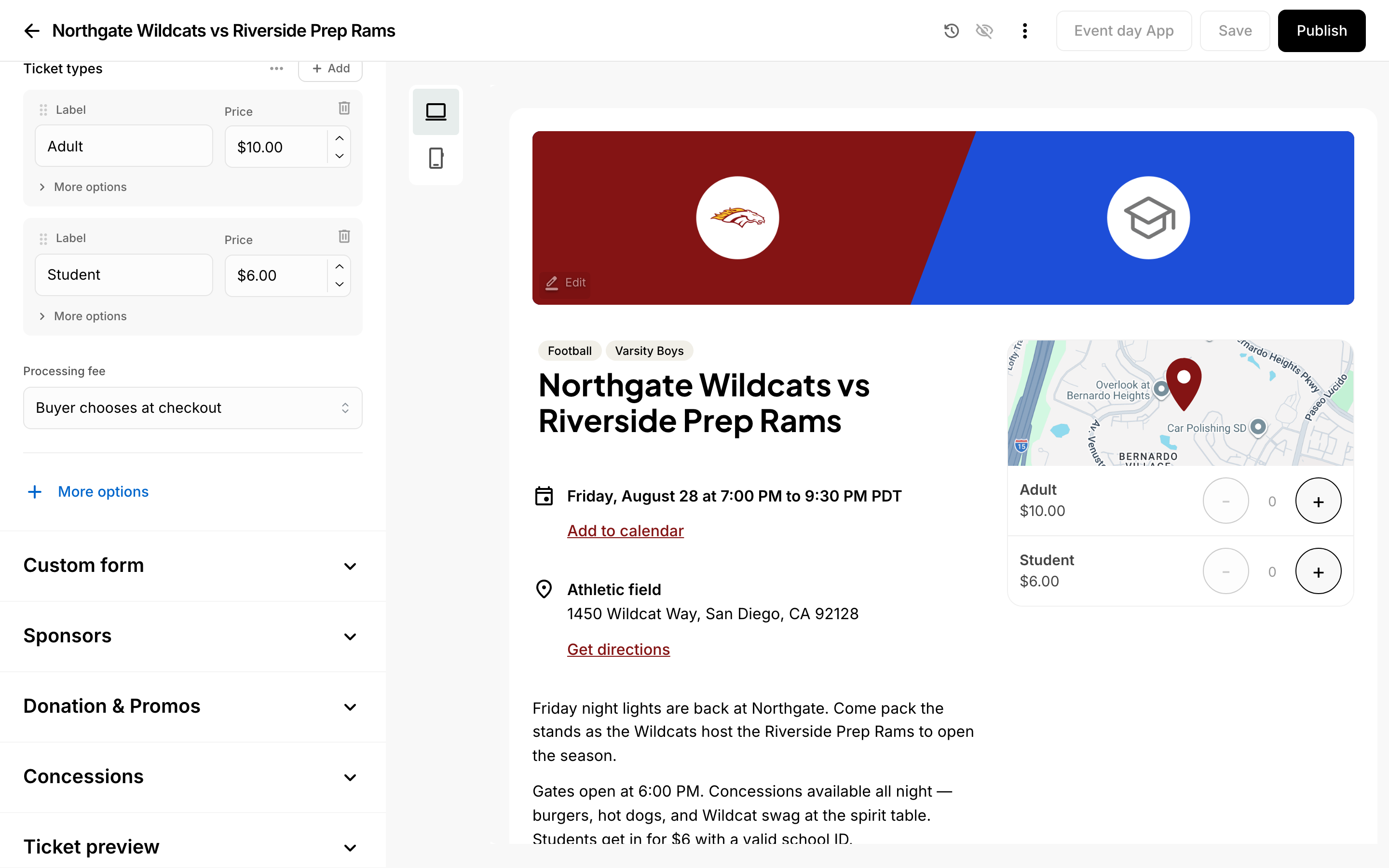 Ticket types and prices in the event editor.
Tips for Pricing and Managing Tickets
You can set ticket prices and manage your ticket inventory by configuring ticket types, quantity limits, and pricing for different seating zones (for seated events) or general admission categories.
Understanding Ticket Types
Ticket types represent the different categories you offer for an event. You can create multiple ticket types to accommodate different buyer groups or seating areas, each with its own price and availability.
Setting Ticket Prices
- Create your ticket type with a descriptive name (for example, "General Admission" or "VIP Seating").
- Enter the price for the ticket type. Prices are shown in USD.
- Apply the price across all available tickets for that type, or vary it by seating zone if your event uses a seating chart.
Managing Inventory
- Set quantity limits for each ticket type to control availability. This prevents overselling.
- Track availability as sales occur. Your system monitors which seats or tickets are purchased and which remain.
- Adjust pricing before tickets are purchased. Once an order is placed, that pricing is locked for that customer.
Pricing Strategies
- Zone-based pricing: If your event has reserved seating, you can set different prices for different zones or sections.
- Multiple tiers: Offer several price points (budget, standard, premium) to maximize revenue and appeal to different buyers.
- Early-bird pricing: Consider managing prices manually by updating ticket types before and after promotional periods.
Best Practices
- Test your pricing before making it visible to buyers.
- Clearly label each ticket type so buyers understand what they are purchasing.
- Monitor your inventory regularly to ensure quantities match your actual capacity.
- If using promo codes or fees, factor those into your displayed prices for clarity.
Promo Codes and Fees
To run discounts, create promo codes for your event. You can also choose who covers the processing fee — the buyer or your organization — in each event's settings.