
Promo Codes
Create a promo code that takes a percentage off your ticket prices, and fix it when a buyer says the code won't work.
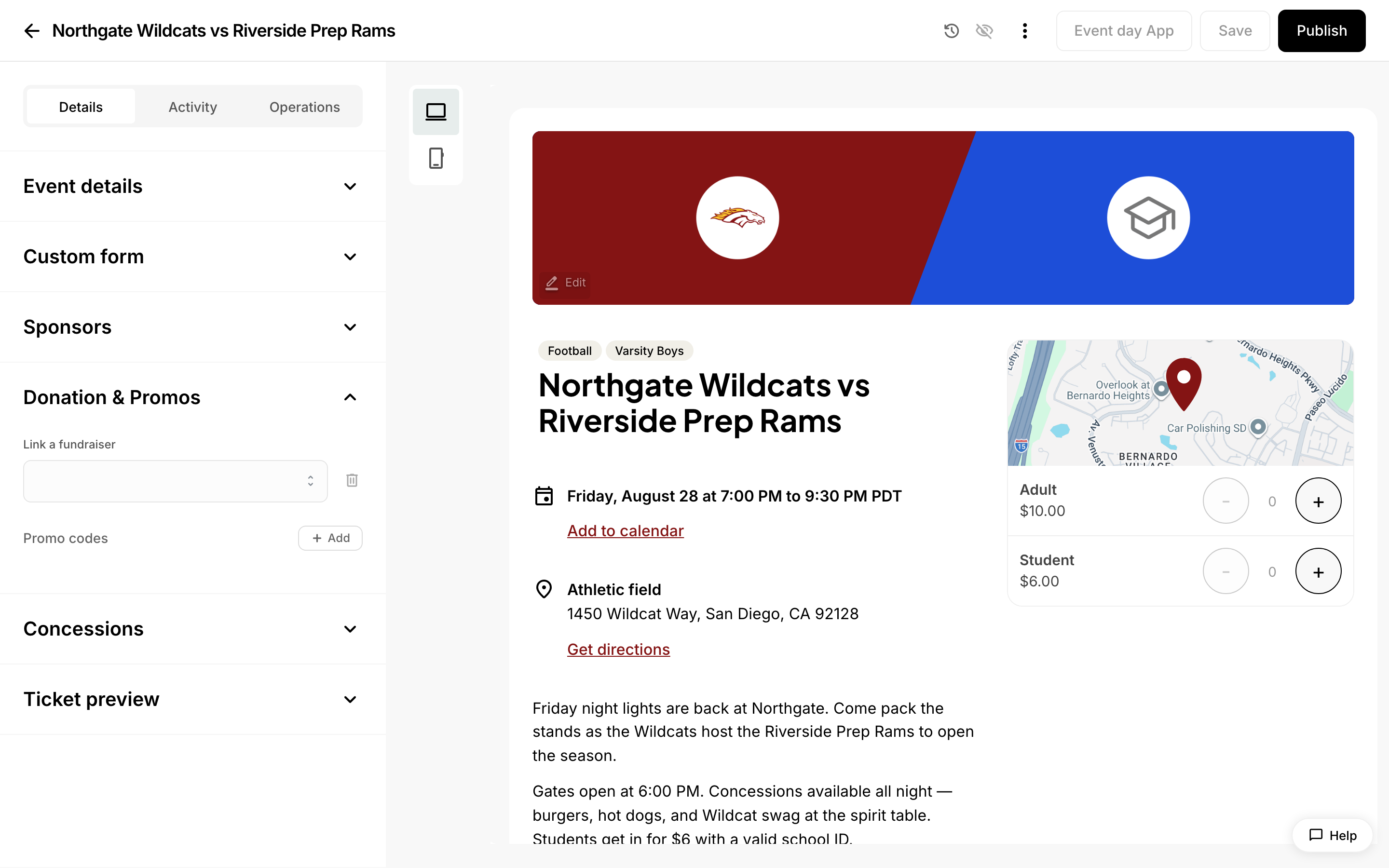 Promo codes under Donation & Promos in the event editor.
Promo Codes
A promo code lets you take a percentage off the ticket price for buyers who type a code you gave them. Use one when you want a discount for a specific group — staff, sponsors, season ticket holders, a school that's traveling to your game — without lowering the price for everyone.
Codes live inside the thing they discount. You create and manage them in the editor for a single event, pass, or registration.
What a promo code does
- Takes a percentage off. Each code has a whole-number discount, up to 100%. The discount applies to the tickets in the order. It does not reduce a donation the buyer adds at checkout.
- Can be limited to a number of uses. Set a Quantity and the code stops working once it has been redeemed that many times.
- Belongs to one item. A code you create on an event works only on that event. It won't work on another event, a pass, or a registration.
Buyers can't discover your codes by looking at your public page. The code list is never included in what the page sends to a buyer's browser — they have to be told the code.
Create a promo code on an event
- From the dashboard, open Box office and select the Events tab.
- Click the event you want to add a code to. The event editor opens.
- In the left panel, expand the Donation & Promos section.
- Next to Promo codes, click + Add. A new code form appears with four fields:
- Promo title — an internal name so you can tell your codes apart (for example, "Staff discount"). Buyers never see this.
- Code — what buyers type at checkout (for example, "MVP10"). Letters and numbers only. It's converted to uppercase automatically.
- Discount — the percentage off, as a whole number. Always set one; a code with no discount has nothing to apply.
- Quantity — how many times the code can be used in total.
- Click Save & close at the top right.
To add another code to the same event, click + Add again.
Add a code to a pass or registration
A pass is one ticket that admits the holder to several events. A registration is a sign-up form for a program or camp, with its own fees.
Both work the same way as an event, with one difference in where the codes live: open the pass or registration in its editor and look for the promo codes area under its Sponsors & promos section.
How buyers redeem a code
When an item has at least one promo code, buyers see an Add a promo option in the ticket checkout panel. If there are no codes, the option doesn't appear at all.
- The buyer selects Add a promo.
- They type the code into the Promo code field and click Apply. Case doesn't matter — whatever they type is converted to uppercase before it's checked, so "mvp10" and "MVP10" both work.
- If the code is good, the discount is applied and a small tag icon appears next to the total with a "Promotion applied" note.
If the code doesn't exist on that item, the buyer sees "Sorry, that's not a valid promo code."
What happens if a buyer's promo code has run out of uses?
The code stops discounting. The buyer sees "Sorry, that code has reached its use limit and is no longer available," and the total stays at full price. Nothing is charged incorrectly — the code simply won't apply.
If you want to let more people use it, open the item, raise the Quantity above the number of redemptions already made, and click Save & close. A code works only while its redemption count is below its quantity.
Can a code be used an unlimited number of times?
Yes. If you don't set a quantity, the code has no use limit and keeps working for as long as it exists. Set a quantity only when you actually want a cap — for example, "the first 50 families."
What happens if the discount makes the order free?
A 100% code brings the total to $0, and there is nothing left to pay. The checkout changes to match:
- The card and wallet payment area disappears.
- The buyer fills in their first name, last name, and email address instead.
- The option to cover processing fees disappears, since there are no fees on a $0 order.
- The buyer clicks the claim button and gets their ticket by email.
The use limit still applies on this path. A 100% code with a quantity of 1 can be claimed once, and the next person who tries it is told the code has reached its limit.
Can a code be limited to one membership tier?
Yes, for membership programs — a pass sold at several levels, where each level is a tier. A code can be restricted so it only applies to certain tiers.
If a buyer types that code while looking at a tier it doesn't cover, they're told which tiers it does cover — for example, "That code is only valid for the Booster tier." That way they know to go back and pick the right level instead of assuming the code is broken. If every tier the code pointed at has since been deleted, they see the more general "Sorry, that code isn't valid for this membership tier."
Tier restriction is checked last, after the other checks. So a code that has expired or run out of uses is reported that way, rather than sending the buyer off to a different tier where it would fail anyway.
Can a code work only during a certain date range?
A code can carry a start and end time, and it's judged in your organization's own time zone — not the buyer's and not the server's. A buyer who tries a code before it starts or after it ends is told the code isn't active right now, rather than being told it's invalid. Codes with no dates set are always active.
We could not confirm the exact field labels for these dates in the event editor, so check the promo code form in your own account before relying on them.
What happens if a family has several registrations in one cart?
The buyer types the code once. It's checked against every registration in the cart, and it discounts each registration that has that code. Registrations that don't have it are left at full price, and checkout continues normally.
If no registration in the cart accepts the code, the buyer gets the most specific reason — out of date range, or out of uses, rather than a misleading "not a valid code."
Why isn't my code discounting anything?
Work through these in order:
- It's on the wrong item. A code lives on one event, pass, or registration. Open the exact item the buyer is purchasing and confirm the code is listed there.
- It has no discount set. A code with a blank or zero discount has nothing to take off. On a registration, such a code is skipped entirely.
- It's spent. The redemption count has reached the quantity. Raise the quantity.
- It's outside its date range. If you gave the code a start or end time, check it against your organization's time zone.
- It's restricted to other membership tiers. Check which tiers the code covers.
- The code text doesn't match. Codes are letters and numbers only and are stored in uppercase. A space or a dash in what you handed out won't match.
How do I see who used a code?
Open the registration's report table. A Promo code column is available there, showing the code each buyer used. It is hidden by default, so turn it on from the table's column options when you want to count redemptions or check that the right families used the right code.
Manage existing codes
Open the event, pass, or registration and expand its promos section to see all of its codes. From there you can:
- Edit a code's title, code text, discount, or quantity, then click Save & close.
- Delete a code with the trash icon next to it. Deleted codes stop working immediately for new purchases.
Can I see who changed a code?
Yes. Edits to a promo code are recorded in the item's activity, named by the code itself — a change to FALL10's discount shows up as "FALL10 — Discount %" with the old value and the new one side by side. Adding or removing a code is recorded too. If a discount looks wrong, that's the fastest place to see what changed.