
Promoting Your Individual Event
Share an event's public link, print a poster, post to Facebook, download a QR code, or embed it on your site — and add categories and sponsors.
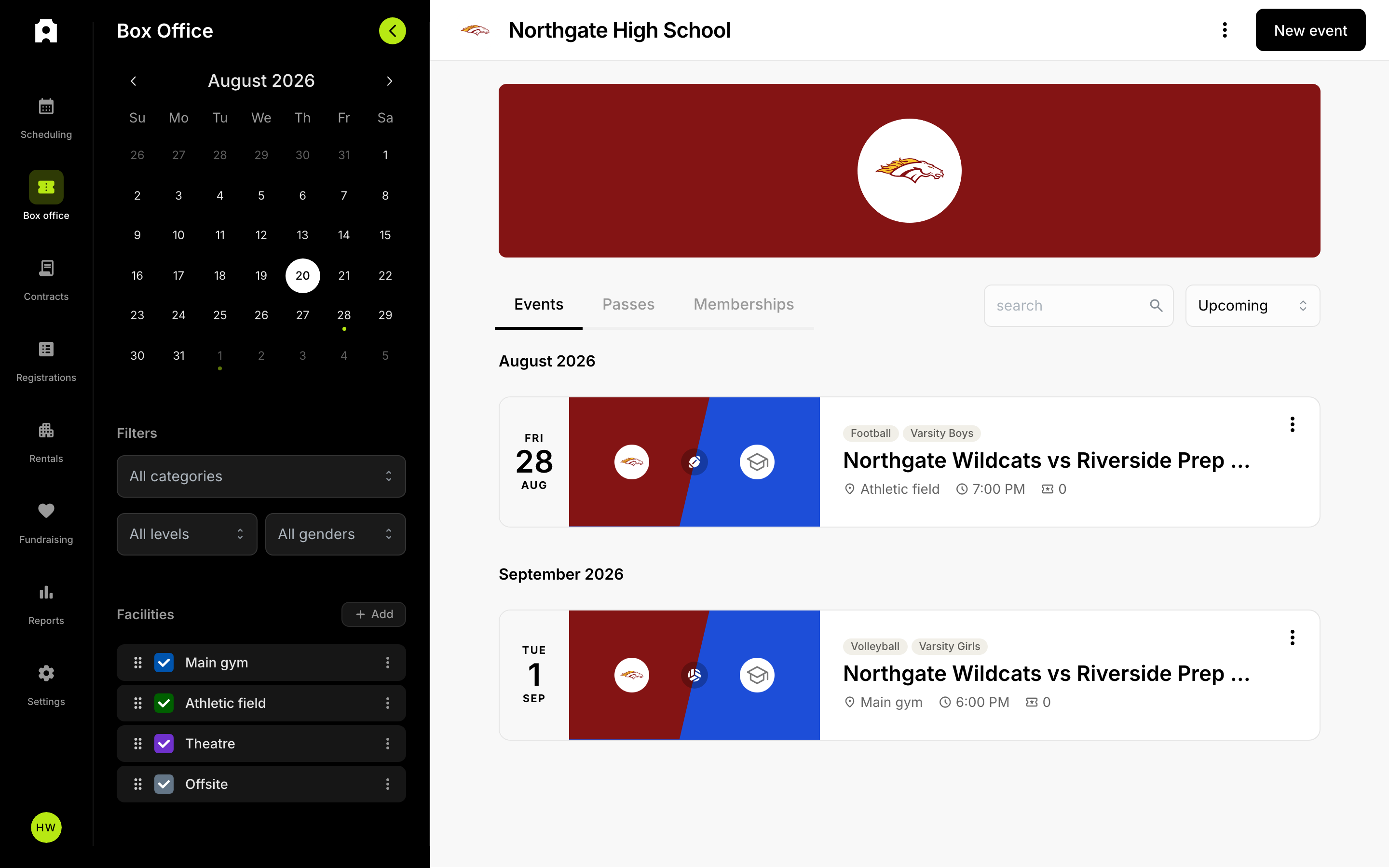 Share and manage an event from the Box Office list.
Promoting Your Individual Event
Every event you publish gets its own public event page with a shareable link. You promote an individual event by sharing that link, and you can also print a poster, post to Facebook, download a QR code, or embed the event directly on your own website. Adding a category and sponsors helps families discover the event and helps you generate revenue.
How do I share my event's public link?
When you publish an event, a "Share your event" dialog opens with everything you need to promote it. You can reopen it any time from the event using the Share option.
- Open the "Share your event" dialog for the event you want to promote.
- Under "Promote your event," copy the event page link, or select the open icon to preview the page in a new tab.
- Share the link anywhere your families already are: email, text, your website, social posts, or printed materials.
From the same dialog you can also:
- Print poster to produce a print-ready flyer for the event.
- Share on Facebook to post the event to Facebook.
- Download QR to save a QR code image that links straight to the event page — useful for printed programs, posters, and signage.
How do I put the event on my own website?
You can embed the event so it appears inside your own site, letting families buy without leaving your page.
- In the "Share your event" dialog, select Embed.
- Choose Copy link to copy the embeddable event link, or Embed code to get a ready-made snippet you can paste into your site.
- If you use the embed code, adjust the width and height so the event fits your page layout, then copy the snippet and paste it where you want the event to appear.
You can also embed your full box-office calendar so families see all of your events in one place. In Settings, under your school settings and public pages, copy the calendar link or its embed code and add it to your website.
How do categories help families discover my event?
When you create or edit an event, you can assign it a Category. The category appears on the event page and lets families filter your public events list to the type of event they're looking for, so the right people find your event faster. Choose the category that best matches the event before you publish.
Can I feature sponsors on my event?
Yes. In the event editor you can add sponsors to an event — a way to generate revenue and give your supporters visibility. Sponsor logos appear on the event page, and you can choose whether to include them on the printed poster. Add each sponsor's logo and, optionally, a link to their website.
How do buyers find tickets they've already purchased?
Your public events list includes a self-service "Can't find your tickets?" option so buyers can retrieve their own tickets without contacting you. They select Find my tickets and look them up using the email address they used at checkout. Point families to your events page if they can't locate a confirmation email.