
Selling Reserved Seating
Sell reserved seats with a visual map of your venue, where buyers pick specific seats or a general-admission area and each seat can carry its own price.
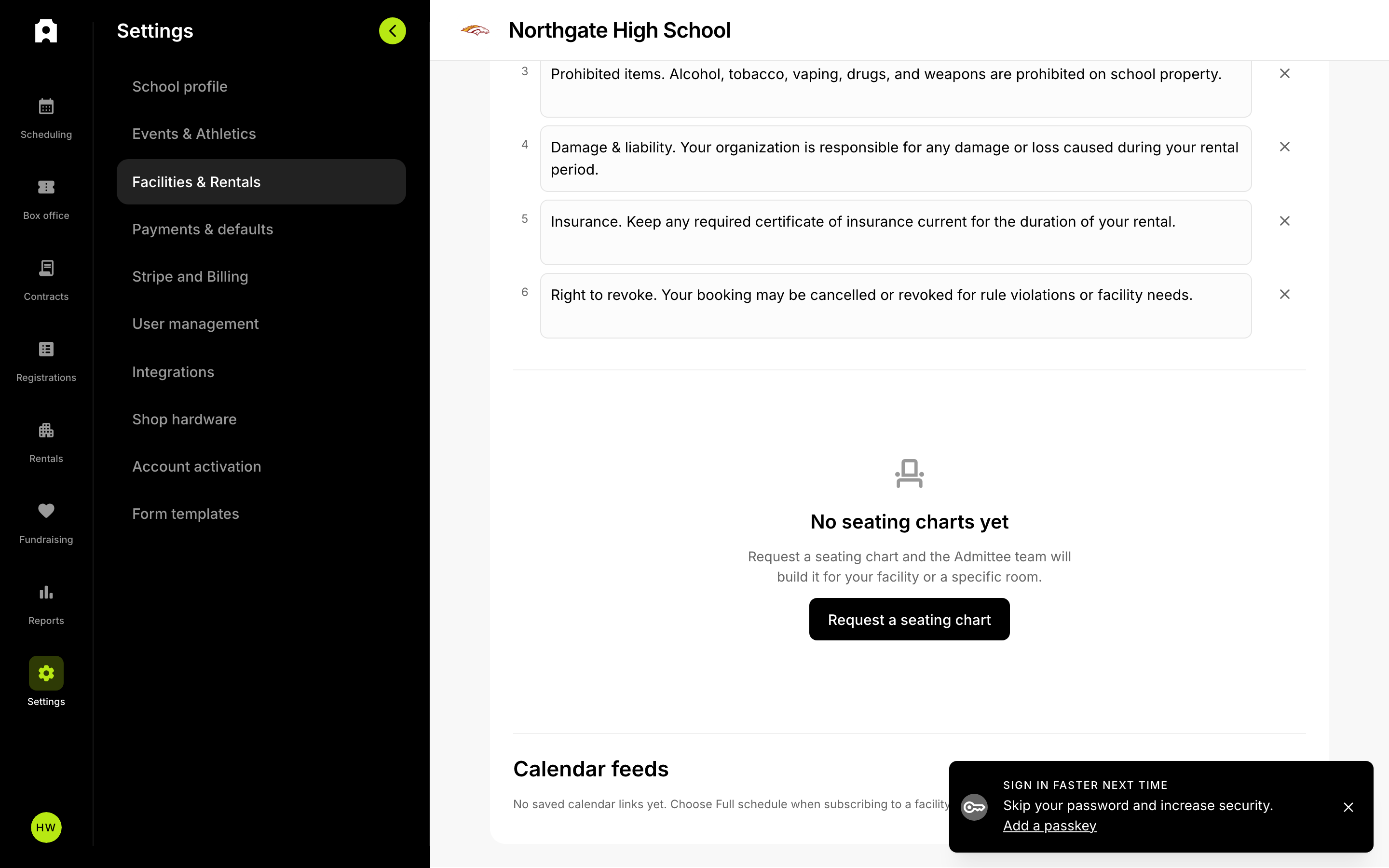 Request a seating chart in Settings → Facilities & Rentals; the Admittee team builds it.
You can sell reserved seating for a ticketed event using a visual map of your venue. Buyers see the seating map at checkout and pick specific seats or a general-admission area, and each seat or zone can carry its own price. Charts support fully assigned seating, open capacity-only seating, and mixed reserved-plus-general-admission layouts.
Request a seating chart
You do not build the chart yourself. You request one, and the Admittee team builds it for your facility and delivers it back to you.
- Open Settings, then Facilities & Rentals, and find the Seating Charts section.
- Click Request a seating chart, pick the facility or room, and submit.
- Wait for the Admittee team to build and deliver the chart. It shows as ready in this section once it is available.
A chart is attached at the facility level, so every event at that facility can reuse the same chart.
Attach a chart to an event
- Create or edit a ticketed event at that facility.
- Turn on Use seating chart and choose a mode: assigned, open, or multi (tiered).
- Tap the chart map to assign a price to each seat or zone.
- Publish the event so buyers see the seating map on the public page.
Buyers then pick their seats or a general-admission area quantity and check out. Sold seats lock automatically so no one else can take them.
Things to know
- Charts are authored by the Admittee team, not self-serve. General-admission areas and tiered multi-price zones only appear when the delivered chart was built with them.
- Charts for a room or sub-facility are listed but are not yet usable by events. Use a facility-level chart for now.