
Sharing Your Public Calendar
Give your community one always-current page of every public event — share the link, embed it on your website, and let visitors subscribe.
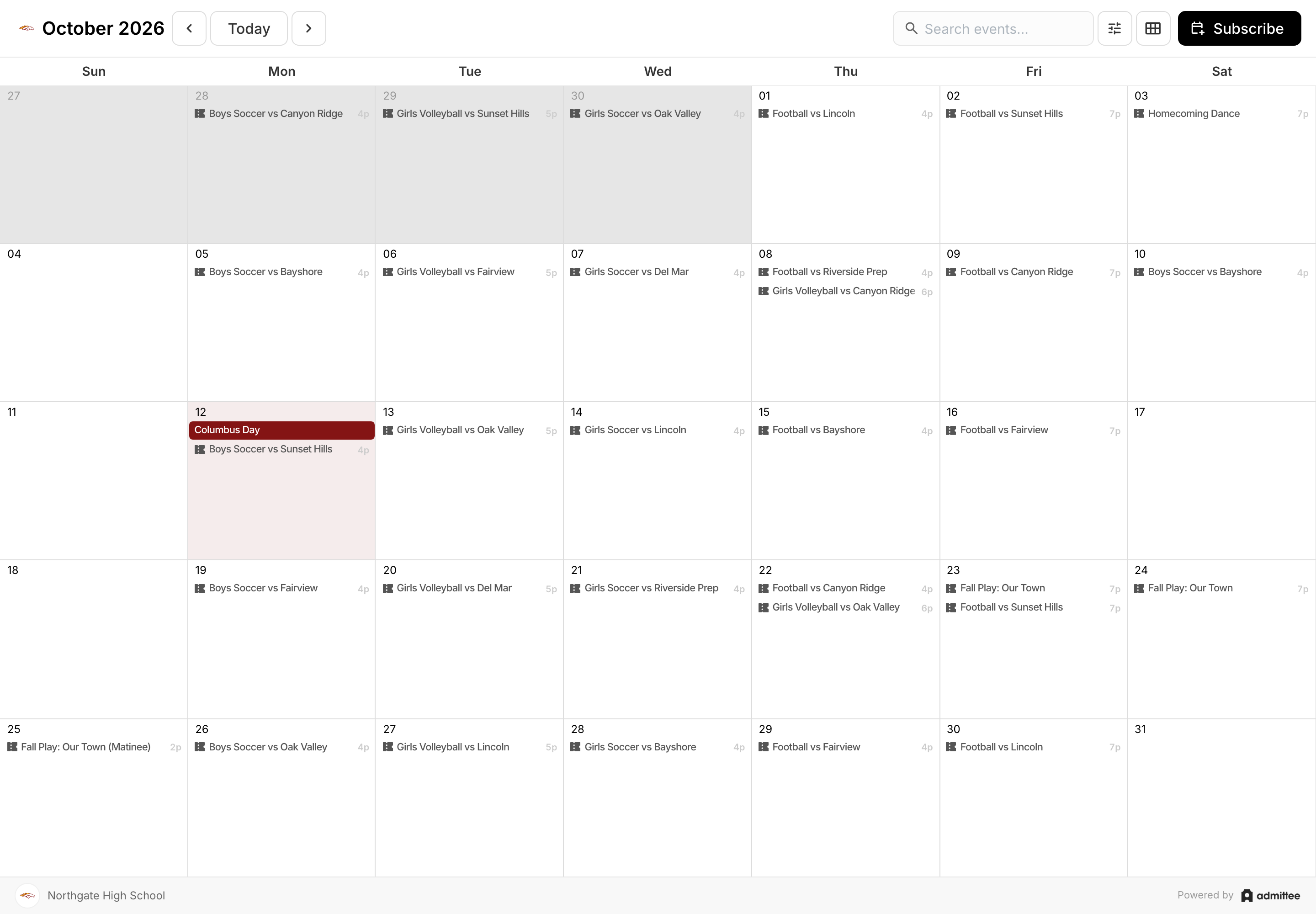 The public calendar shows every published event in one place, updated automatically.
Your public calendar is a single page that shows every event you publish — games, performances, fundraisers, and more — in one place. It updates on its own as you add, edit, or publish events, so your community always sees the current schedule without you touching a thing.
Find your public calendar
- Go to Settings and open your School profile.
- In the Public pages card, open the Public calendar menu.
You'll also find a Public calendar button on the Scheduling page.
Share the link
- In the Public calendar menu, choose Embed page URL to copy your calendar's link.
- Paste it wherever your community looks — an email, a social post, or a "Calendar" link in your website's menu.
Anyone with the link can open the calendar in their browser. No account or sign-in is needed to view it.
Put it on your website
- In the Public calendar menu, choose Embed code to copy a ready-made snippet.
- Paste it into a page on your own website. The calendar appears right on your site, framed to match, and keeps updating automatically.
What visitors can do
- Browse events by month or week.
- Search and filter to find a specific team, activity, or date.
- Subscribe to add your calendar to their own Google or Apple Calendar, so new events show up automatically.
- Select any event to open its page and buy tickets or register.
Only published, public events appear on the calendar. Drafts and internal events stay hidden until you publish them.