
Tips to Move Quick in Admittee
Work faster in Admittee with the sidebar and account menu, table search and filters, saved table columns, and account defaults.
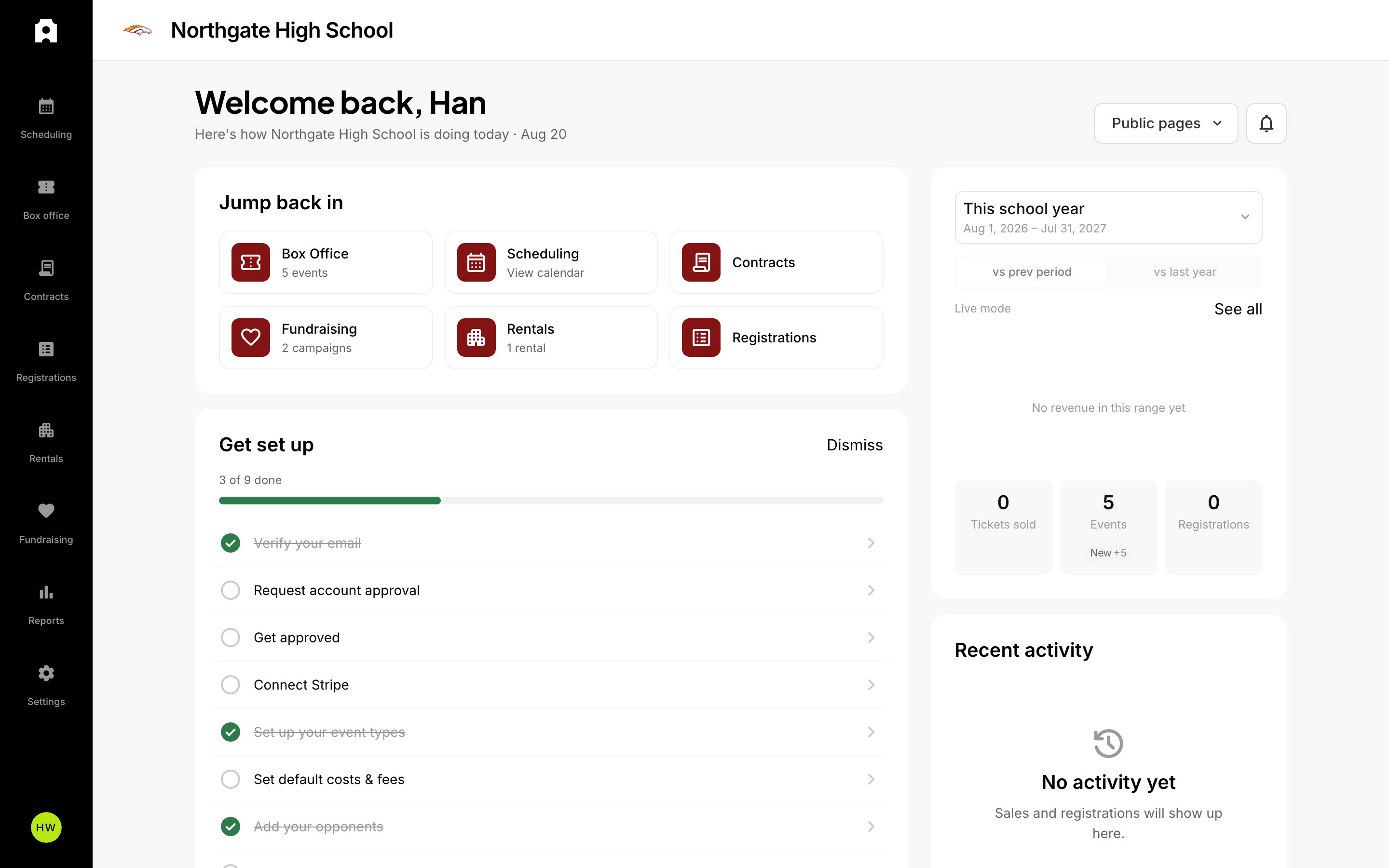 The dashboard — your home base in Admittee.
Tips to Move Quickly in Admittee
You can move faster in Admittee by starting from your home page, jumping between areas with the left sidebar (or the More menu on mobile), searching and filtering list tables instead of scrolling, customizing the columns you see, and setting account defaults so new records fill in automatically. Everything below is built into the dashboard, so there is nothing extra to install.
What you see depends on your role and on which areas your institution has turned on, so your menus may be shorter than a colleague's.
How do you use your home page as a launch pad?
Your home page is built to answer "what needs me right now?" before you click into anything:
- Quick launch tiles deep-link straight into the areas you use most, and many show a short count line so you get context before you click.
- Needs your attention lists items that have a clear next action — scheduling conflicts and pending facility approval requests — with the facility and the events involved named in the row. Selecting a row takes you to the same place the notification bell would.
- This season summarizes activity such as revenue by stream, with a date-range picker and a comparison against either the previous period or the same period last year. Finance-related figures appear only for roles with reporting permission.
- Recent activity rows open the related record directly, so you can go from a transaction to its event, pass, membership, fundraiser, or registration in one step.
- A setup checklist appears while your account is still being configured, and each item links to the exact page where you finish it.
How do you move between areas quickly?
The left sidebar is your main map. Each area you have access to appears as its own tab — such as Scheduling, Box office, Contracts, Registrations, Rentals, Fundraising, and Reports — plus Settings. Select a tab to jump straight there instead of stepping through pages.
Your avatar (profile photo) opens an account menu with quick links to My profile, Settings, the Help center, and Log out. For pages you visit constantly, bookmark them in your browser for one-click access.
On a phone or tablet, use the bottom tab bar for your most-used areas and tap More to reach everything else. In that menu you can:
- Tap any area to navigate straight to it.
- Tap Settings to expand the settings pages you have access to, then tap the one you need.
- Tap your name to open your profile, or use the rows beneath it for the Help center and logging out.
How do you stop hunting for problems?
Use the notification bell rather than scanning the calendar. It surfaces scheduling conflicts and facility approval requests, and the same items appear in Needs your attention on your home page — the two never disagree. Conflicts are listed ahead of approvals, and conflicts you have already overridden are left out so the count stays meaningful. Repeat occurrences are grouped into a single row with a count.
How do you find records fast?
In list views, use the search box in the toolbar to filter to the records you want, and use the available filters instead of scrolling. On event lists you can filter by category, level, gender, and date range, and your filter choices are remembered for next time.
Two more shortcuts on these pages:
- Use the tabs to switch between related lists — for example Events, Passes, and Memberships in Box office — instead of navigating away.
- Switch between Upcoming and Archive views when you need past records rather than future ones.
Searching and filtering is almost always faster than paging through a long list.
How do you customize the columns you see?
Most dashboard tables let you choose which columns appear and in what order:
- Select the gear icon in the table's header to open the Selected Columns panel.
- Turn columns on or off with the checkboxes, and drag rows to reorder them.
- Your layout is saved in your browser for that table, so the next time you open it your columns are already the way you left them.
When you need the data outside Admittee, use the table's Export option to download it as a spreadsheet. Exports respect the columns you have chosen.
How do you pull numbers without rebuilding a report?
Use the named date presets instead of picking dates by hand. Reports and your home page share the same preset set — this month to date, quarter to date, season, and similar — so the two surfaces always mean the same thing by the same label. On analytics pages, set the month or range in the toolbar and select Report to download the results.
How do you work from the calendar?
For anything schedule-based, the calendar and schedule views give you a fast, visual way to scan what is coming up and open a specific item, rather than reading down a list. Use them when dates and timing matter more than table details.
How do you avoid re-entering the same details?
Set your account defaults once and new records inherit them automatically. Default ticket types, categories, rental rates, and more can be configured in Settings so you are not retyping the same values every time. See Setting Account Defaults for where each default lives.
A quick browser tip
For the smoothest experience, use a current version of a major web browser and keep it up to date. If a page ever looks off or loads slowly, refresh the page (or clear your browser cache and reload). If problems persist, contact Admittee support.
Related: Setting Account Defaults.