
Signing In with Passkeys and Google
Sign in to the web app without a password by using a passkey with Touch ID, Face ID, or a security key, or by continuing with Google.
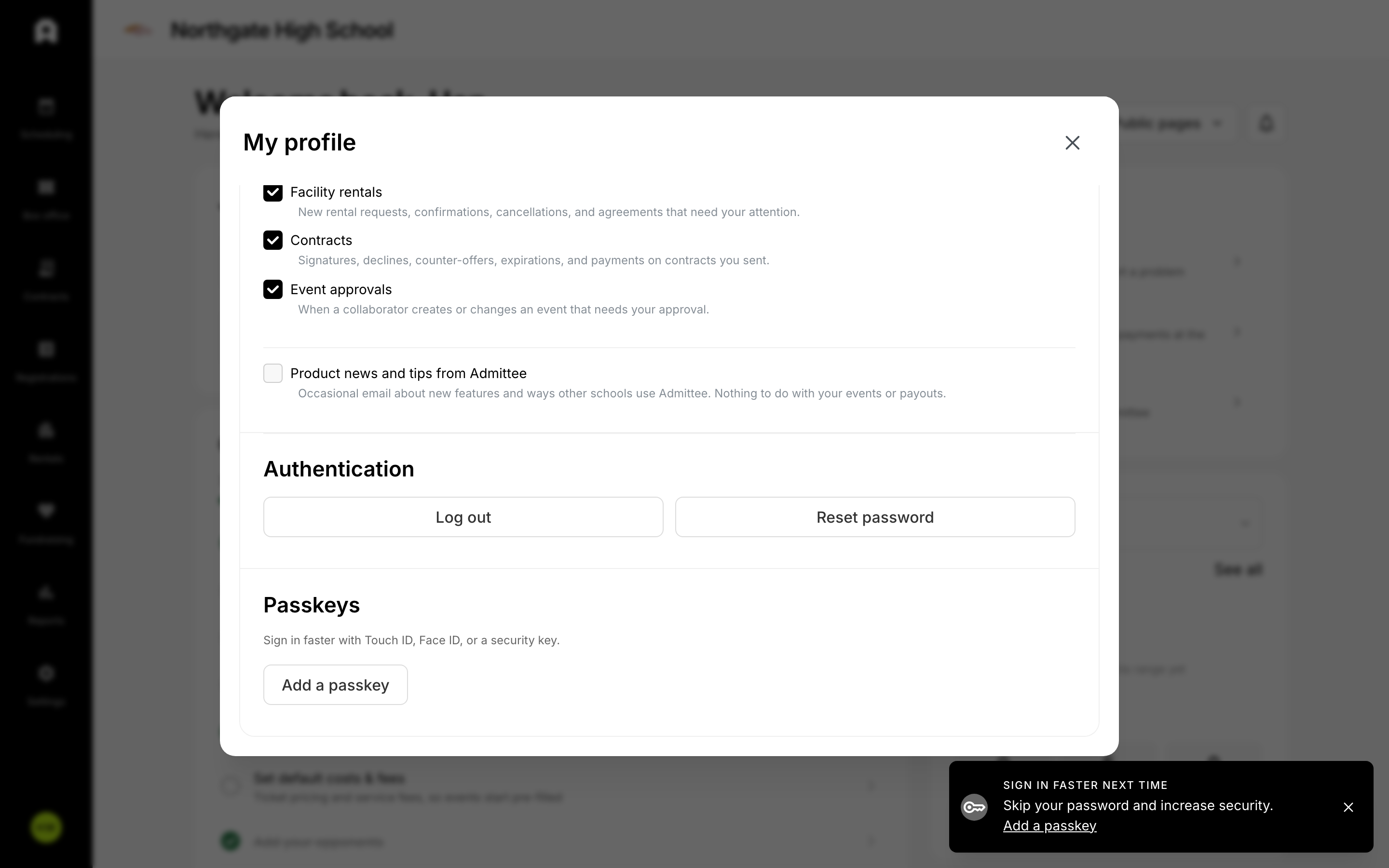 Add and manage passkeys from the Passkeys card in your profile.
You can sign in to Admittee without typing a password. Add a passkey and confirm with Touch ID, Face ID, or a security key, or continue with a Google account. Your password still works as a fallback. These options are available on the web app only, on both the dashboard and public buyer pages. The mobile app does not offer them.
Add a passkey
- Open Settings and go to the Profile tab.
- Find the Passkeys card.
- Click Add a passkey.
- Name the device so you can recognize it later.
- Confirm with Touch ID, Face ID, or your security key.
You can register more than one passkey, one per device. If your browser does not support passkeys, the Add button is disabled and shows helper text explaining why.
Sign in with a passkey
- On the login page, enter the email for your account.
- Click Sign in with passkey.
- Confirm with Touch ID, Face ID, or your security key.
You must enter your email first, because Admittee looks up your passkey by email. The passkey button only appears in browsers that support it.
Continue with Google
- On the login page, click Continue with Google, below the "or" divider.
- Pick the Google account you want to use.
Remove a passkey
- Open Settings and go to the Profile tab.
- In the Passkeys card, find the device you want to remove.
- Click the trash icon, then confirm with the inline Delete option.
For ticket buyers
When buyers reach the account prompt at checkout, they can create an account or sign in with a passkey. Continue with Google and the password fallback are also available in the buyer sign-in window on public event and checkout pages.