
Refer a Friend
Share your personal referral link so friends who sign up through it are recorded as having been referred by you.
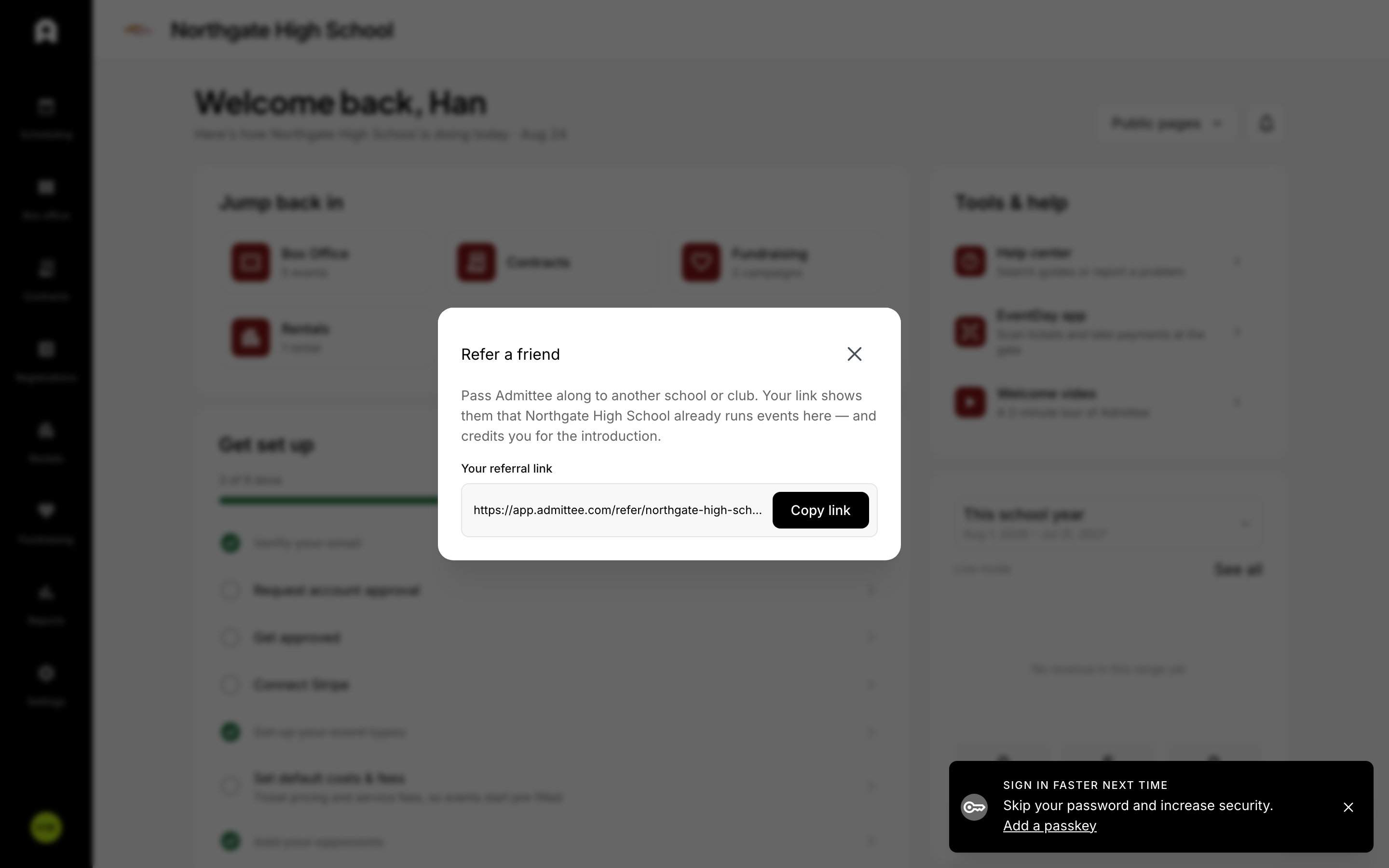 Share your link from “Refer a friend” in the account menu.
Every Admittee account comes with a personal referral link you can share with friends who might want to sign up. When someone creates an account through your link, they are recorded as having been referred by you.
Share your referral link
- Open the account menu: the account dropdown in the sidebar on desktop, or the mobile nav drawer or More sheet on mobile.
- Select "Refer a friend" to open the referral window.
- Your link appears as app.admittee.com/refer/your-code. A referral code is created automatically from your first name, so you can share it right away.
- Select "Copy link" to copy it, then send it to your friend however you like.
Customize your referral code
- In the referral window, edit the code shown in your link.
- Use 3 to 30 characters, made up of lowercase letters, numbers, hyphens, or underscores. Availability is checked as you type.
- Select "Save and copy" to save the new code and copy your updated link.
Some words are reserved and cannot be used as a code, including admin, dashboard, api, signup, login, refer, invite, settings, help, and support.
What happens when a friend uses your link
- Your friend opens your app.admittee.com/refer/your-code link.
- A valid link sends them to the signup page with your referral already filled in.
- When they finish signing up, their account records that you referred them.
This works for both email and password signup and Google signup. If a link points to a code that does not exist, your friend sees an "Invalid referral link" page instead.
Referring a friend records who referred whom. It does not grant any reward, credit, points, or discount.