
Negotiating & Signing Proposals
Learn how the other school accepts, declines or counters each game, and how both signatures finish the agreement.
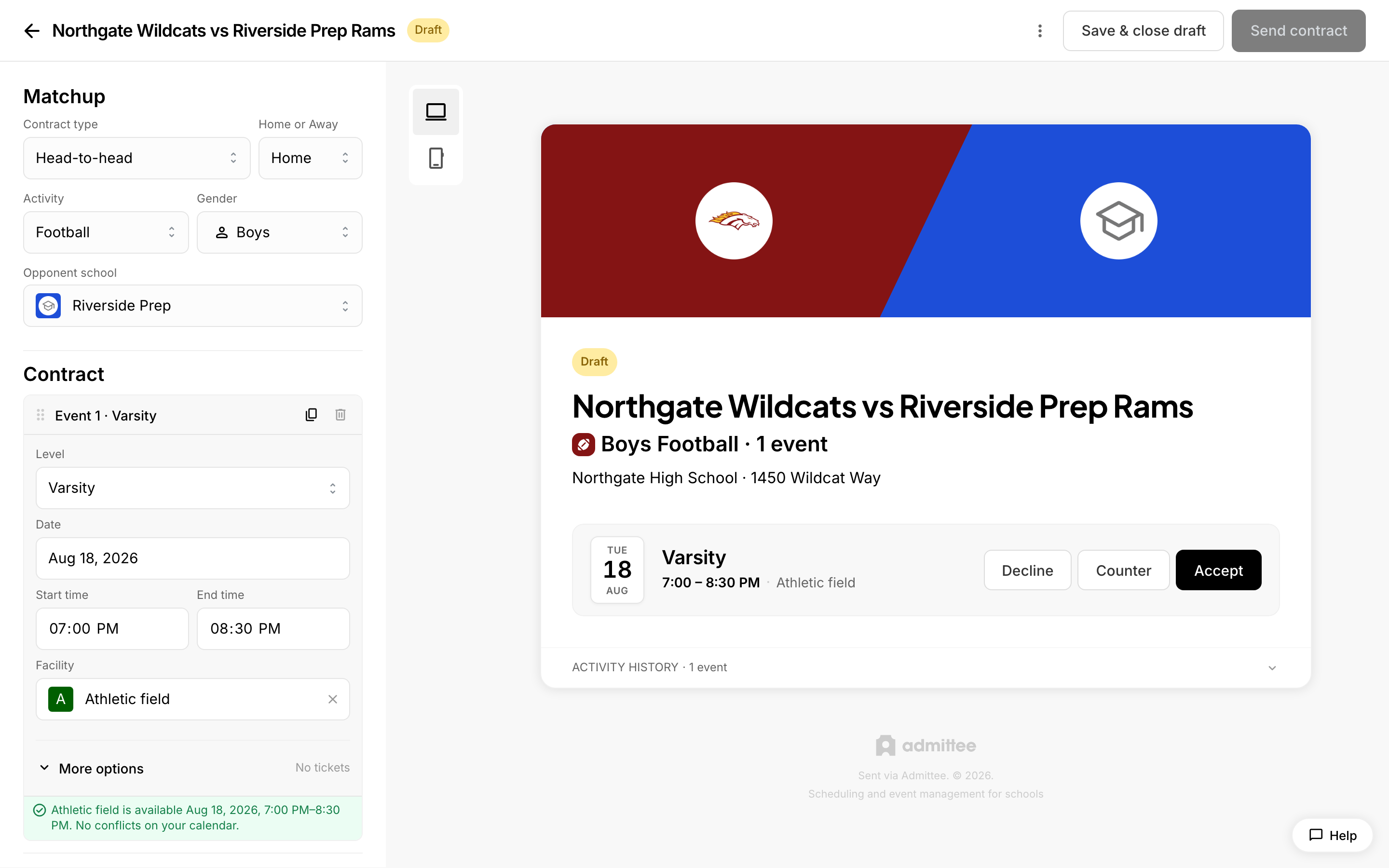 A proposal with accept, counter, and decline options.
After you send a game proposal, this article shows you what the other school sees, how to respond when they suggest changes, and how the proposal becomes a signed agreement. Read it when you have a proposal out and want to know what to expect, or when a proposal is waiting on you.
A proposal is one agreement between your school and another school. It can cover a single game or several games at once. Each game inside it is decided on its own, so one proposal can end with some games agreed to and others dropped.
You can find any proposal you have sent under Dashboard, then Contracts. Open a proposal to see its current state, the decisions on each game, and its history.
How the recipient responds to each game
The recipient opens the proposal from the link in their email or from their own dashboard. They see every game in the proposal and choose one of three actions per game:
- Accept — they agree to the game exactly as proposed. It will be part of the signed agreement.
- Decline — they remove the game. They can add a reason. Declined games are left out of the signed agreement.
- Counter — they suggest a change to the date, the start or end time, or the facility, and can add a note. The game then waits on your answer.
Their choices are held on their screen until they submit. Until then they can change any answer — the row shows "Click to undo". Nothing reaches you until they send their response.
How the recipient submits and signs
What the recipient does next depends on the decisions they made:
- If any game is still undecided, the action button stays greyed out and reads "Decide on all events before signing".
- If they accepted at least one game and left no counters open, the button reads Sign and send to [your school]. They add their signature by typing or tapping, and signing completes the proposal on their side.
- If they countered anything, or declined everything, the button reads Send response to [your school]. No signature is needed yet, because you still have counters to answer.
How you approve or deny counters
When the recipient counters one or more games, those games appear for your review on the proposal in your dashboard. Each countered game shows a "Your original → Their counter" comparison with two choices.
- Open Dashboard, then Contracts, then the proposal with counters waiting.
- For each countered game, choose Accept their time to take the recipient's change, or Keep my original to hold your terms.
- Add a note if you want. The note is sent when you keep any original, so use it to explain why.
- Click Send response.
If your answers resolve every open item, your signature is stamped automatically when you send, and the proposal moves to awaiting signature. The recipient then only owes their signature.
What happens if accepting a counter double-books a facility?
Before you can send, Admittee checks the change against your calendar and your facilities. If accepting a counter would put two events in the same facility at the same time, or collide with something already on your calendar, a conflict banner appears on the proposal and names the events involved. Resolve it first — either keep your original on that game, or clear the conflicting event — then send your response.
When a proposal is fully decided
A proposal is fully decided once every game has a final outcome: accepted, declined, or a counter that has been resolved.
Both signatures are recorded together. Yours is captured when you send your response, and the agreement is fully signed the moment the recipient signs. At that point:
- The status becomes Signed.
- Accepted games are created on both schools' calendars.
- Any game fees move into the payment workflow on the proposal.
- When a schedule is available for the agreed games, the recipient sees an Add to calendar button on the proposal to download it.
What if the recipient counters again after I respond?
They can. If a new counter comes in after you have resolved the earlier ones, your signature is cleared and the proposal returns to in progress. Nothing is locked in until every game is settled again and both sides sign. You will see the new counters on the proposal the same way as the first round.
What if they accept some games and decline others?
That is a normal outcome. Only the accepted games go onto the signed agreement and onto both calendars. Declined games are simply left out, along with any reason the recipient gave. If every game is declined, there is nothing to sign and no games are created.
What if the recipient hasn't responded yet?
The proposal stays in progress and shows a "Contract expires" date until it is decided. Open the proposal and check the history section below the document to see what has happened so far, including when it was sent and any activity on it.
If the recipient's contact shows Email needed on the proposal, no email address is on file for them, so they never received the link. Add the contact's email address and resend.
We could not confirm from the product what happens automatically to a proposal once its expiration date passes, so if yours is close to expiring, follow up with the school directly.