
Creating & Sending Game Proposals
Build a head-to-head game proposal, add games and fees, set ticket prices, and send it to the other school to sign.
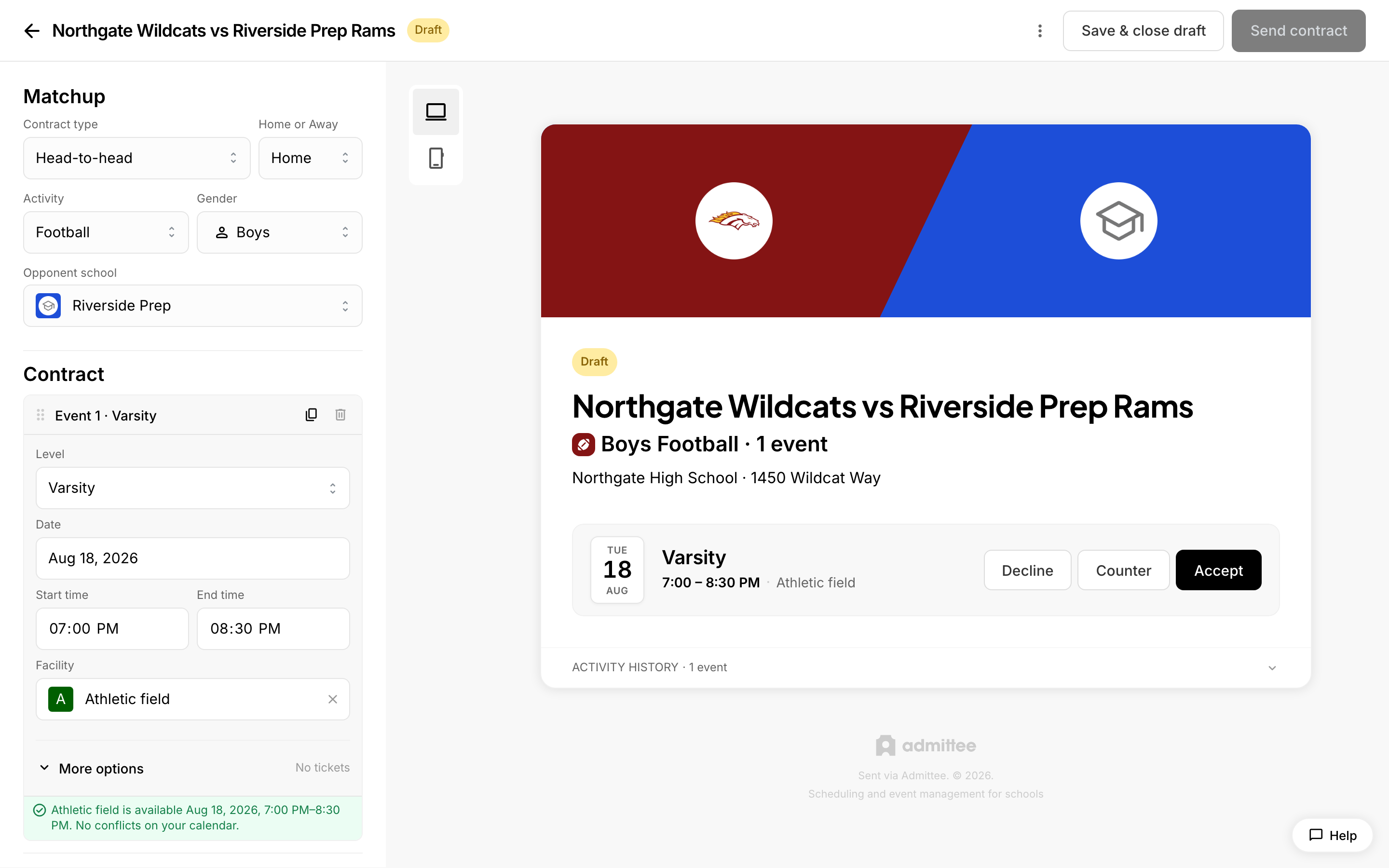 Building a game proposal.
By the end of this article you will have sent a signed-ready athletic contract to another school: the games, the date and place of each one, what the visiting school owes, and what happens if a game is forfeited. Use this when you have agreed to a matchup by phone or email and now need it in writing.
A proposal is the contract itself. A head-to-head proposal covers games between your school and one other school. (Invitational proposals, for multi-school events, appear in the menu as Invitational — coming soon and cannot be selected yet.)
As you build the proposal, the right side of the screen shows a live preview of what the other school will see. Use the toggle above the preview to switch between the desktop and phone views.
Start a new proposal
- Go to your dashboard and open your game proposals, then start a new proposal. The editor opens with the form on the left and the preview on the right.
- Under Proposal type, choose Head-to-head.
- Set Home or Away to Home. (Away is coming soon.)
- In the Matchup section, choose the Activity — the sport — and the Gender: Boys, Girls, or Coed.
The activity and gender apply to every game in the proposal. If you need a different sport, build a separate proposal.
Your work is saved as a draft as you go, so you can leave and come back.
Add the games
A proposal holds one or more games. Each game gets its own card. For every card, set:
- Level — Varsity, Junior Varsity, Freshman, and any other levels your school has set up.
- Date.
- Start time and End time.
- Facility — where the game is played. If that facility is divided into sub-facilities (a specific field, court, or gym), choose one.
Once the date, facility, and times are filled in, an availability row appears under the card and checks those times against your calendar. It tells you whether the space is open or flags a conflict.
To add a second game, use the Duplicate event icon on a game card. It copies everything on that card so you only have to change the level or the date. To remove a game, use the delete icon — a proposal always keeps at least one game. To change the order, drag a card by its handle.
Set fees and ticket prices
Open More options on a game card. These settings are stored per game, so a Varsity game and a JV game can differ.
- Event fee — the contractual amount the visiting school owes for that game. If you have a default fee set up for this sport, level, and gender, it fills in for you.
- Forfeiture fee — the amount charged if the game is forfeited.
- Ticket pricing — the prices that will appear on the public ticket page for that game once the agreement is signed. Tick Free admission if there is no charge to attend.
- Special conditions — optional notes for the other school, such as parking, equipment, or how to send payment.
Ticket prices are yours alone. They are not shown to the opposing school on the proposal.
Add the recipient and terms
- In the Recipient section, choose the opposing school, or pick one you have saved from a previous proposal.
- Enter the contact name and email — usually the other athletic director.
- Add any Cc addresses, such as an assistant or a business office.
- Set an expiry date if you want the proposal to close on its own after a certain point.
- Tick the option to require that only your primary contact may sign, if you do not want the signature delegated.
Your standard agreement terms and governing body line come from your institution settings and print on the proposal itself. There is no separate terms box to fill in here.
If you have other draft proposals addressed to the same opponent, the editor shows a banner so you can bundle them before sending.
Send for signature
- Click Send proposal.
- Admittee checks that the matchup, the games, and the recipient email are complete. If something is missing, it tells you what to fix.
- The opposing contact gets an email with a link to the proposal.
They open the link, go through the games one at a time — accepting, declining, or countering with a different date or time — and then sign. You will see the proposal's status change as they work through it: partly decided while some games are still open, awaiting signature once every game has an answer, and signed when both sides have signed.
When the proposal is signed, ticket pages go live for the games you priced, confirmed games appear on your calendar, and any event fee moves into the payment workflow.
What if a game has no default fee or ticket price?
Before the proposal goes out, Admittee looks for a default that matches each game's sport, level, and gender. If a game has no match, a short setup step opens and walks you through creating one, game by game, then continues sending.
This applies to fees for every game, and to ticket prices for the games you are hosting. Free games still need a matching default with a $0 price, so tick Free admission and complete the step as prompted.
What if the date conflicts with something already on my calendar?
The availability row on the game card flags the conflict as soon as it sees the date, facility, and times. It is a warning, not a block — you can still send. Change the time, pick a different sub-facility, or resolve the other booking if you want the conflict cleared first.
What if I already have a draft for the same school?
If you have other draft proposals addressed to the same school, the editor shows a note. That is a good moment to fold those games into one proposal instead of sending the other AD several separate contracts to sign.
What if I need to change it after sending?
Once a proposal is sent, the editor becomes read-only and shows a confirmation banner. To start over with the same details, use Start a new proposal — it copies everything into a fresh draft you can edit and send again.
If the games have moved on entirely, you can withdraw the sent proposal from your proposals list. Talk to the other school first, since they may already be partway through deciding.
Can I reuse a proposal next season?
Yes. Open the proposal from your list and use the option to propose again. It copies the matchup, games, fees, and recipient into a new draft, so you only need to update the dates before sending.