
Subscribing to Your Calendar in Google, Apple and More
Set up a calendar subscription or feed in Google, Apple, Outlook or ParentSquare, and pick the right link for staff, teams and families.
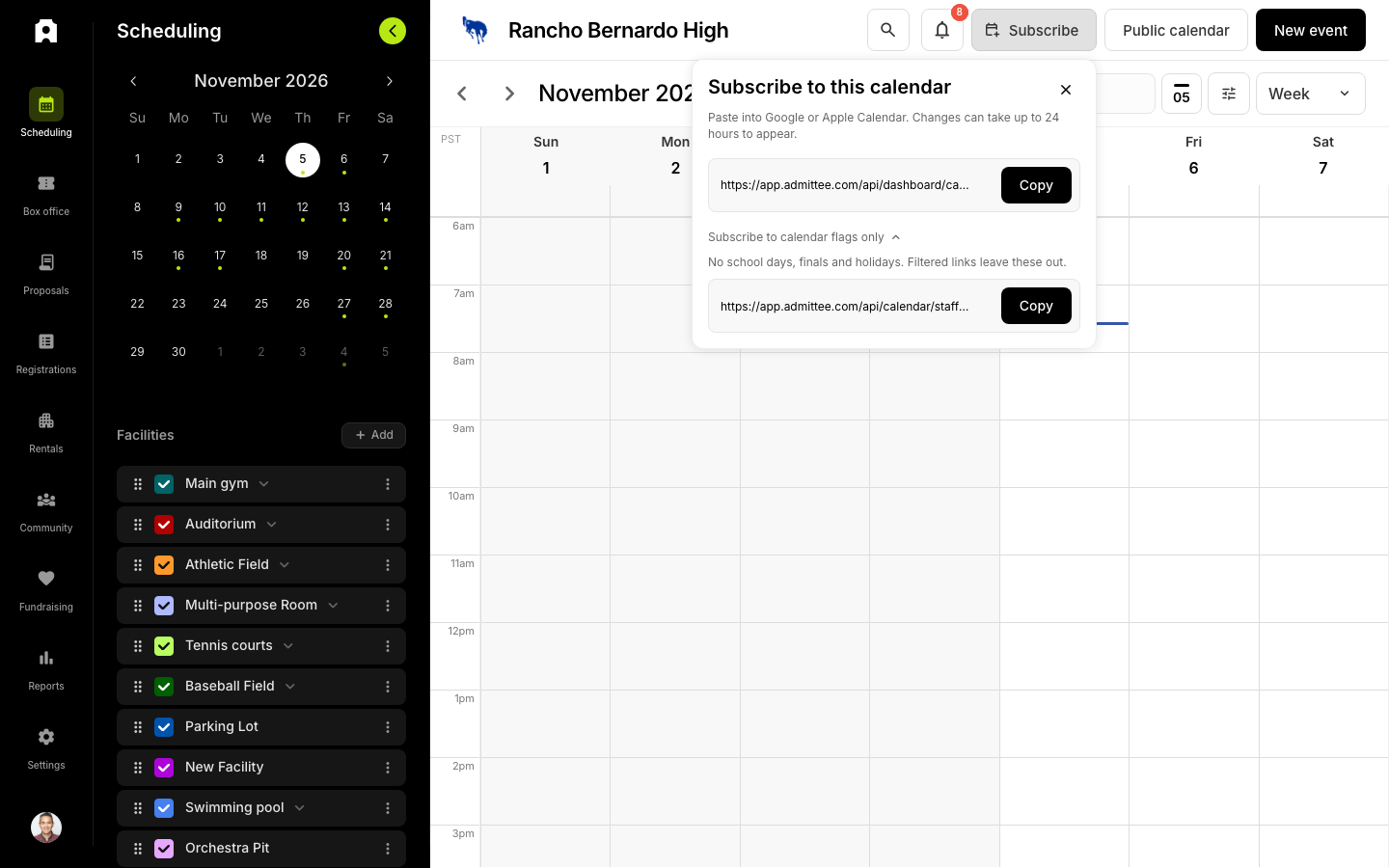 The Subscribe panel on the Scheduling calendar, with the calendar flags link open.
Subscribing to Your Calendar in Google, Apple and More
After this article you will be able to put your Admittee calendar into the calendar app people already use, such as Google Calendar, Apple Calendar, Outlook or ParentSquare. A subscribed calendar updates on its own. When you add, move or cancel an event in Admittee, it changes in everyone's calendar app too.
You do this by copying a calendar link from Admittee and pasting it into the other app. There are three kinds of link, and choosing the right one matters most when you share calendars with families.
Which link should I use?
| Who it's for | Link to use | What's in it |
|---|---|---|
| You and your staff | Whole calendar, from Scheduling | Every event, including private ones |
| A team's parent group | Filtered link for that team | Only that team's events |
| All families, once | Calendar flags only | No school days, finals, breaks and U.S. holidays |
Calendar flags are the all-day markers you add to the calendar, such as "No school" or "Finals week."
Team links leave the calendar flags out on purpose. A family with children on three teams would otherwise see every "No school" day three times. Share the calendar flags link once, school-wide, so every family gets those days a single time.
Get the whole-calendar link for staff
- Go to Dashboard, then Scheduling.
- Click Subscribe at the top of the page, next to Public calendar.
- Click Copy next to the link.
This link shows everything on your calendar, including events that are not public. Share it only with staff.
Get a link for one team
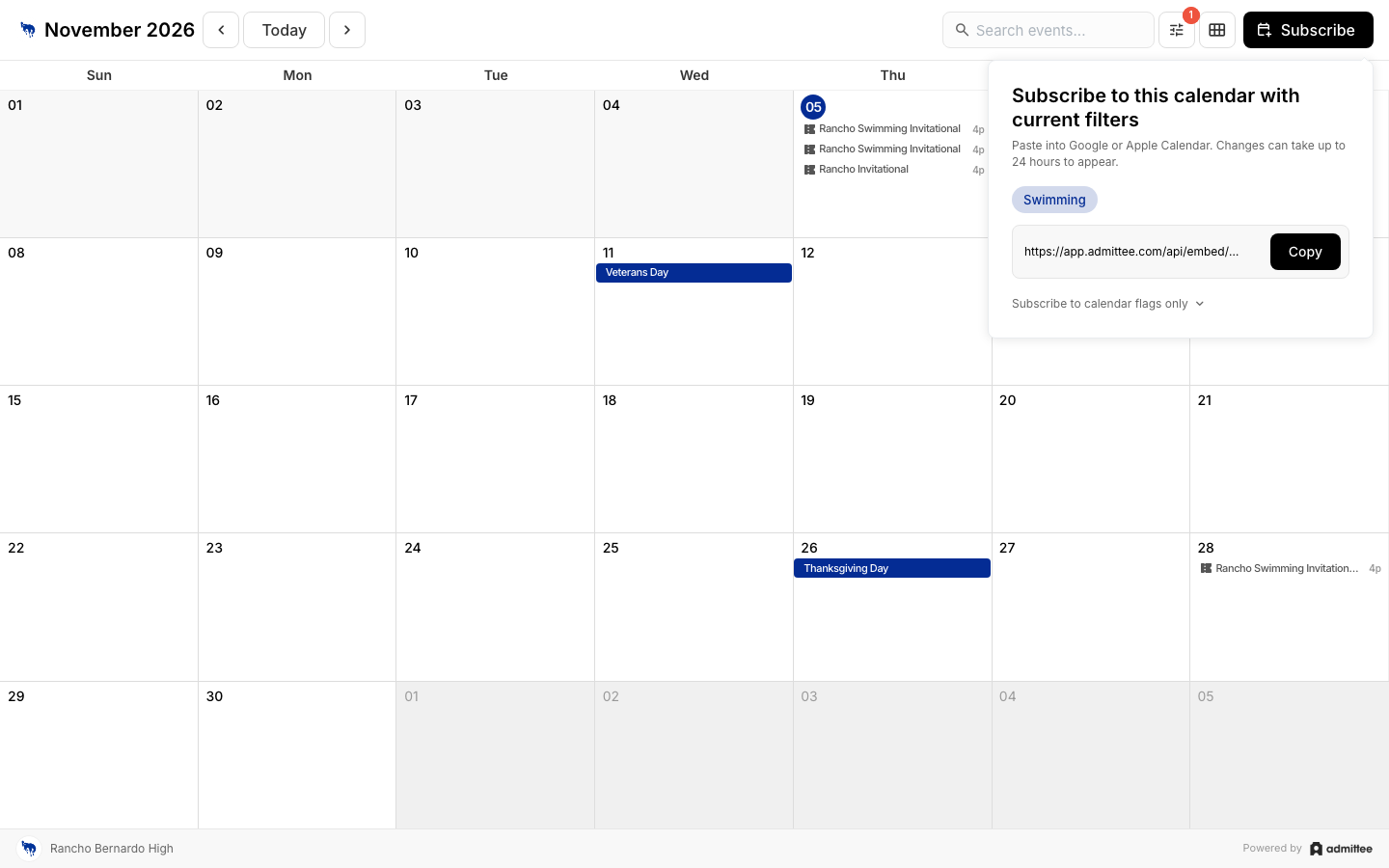 The public calendar filtered to Swimming, with a Subscribe link for just that team.
- Open your public calendar, the one on your school's website.
- Click the filter button next to the search box and choose the team's category, such as Swimming. You can also narrow by level or gender. Click Done.
- Click Subscribe. The panel title changes to "Subscribe to this calendar with current filters" and shows the filters you chose.
- Click Copy.
Post this link in that team's group, for example the team's ParentSquare group. Repeat for each team.
You can make the same filtered link from Scheduling by setting filters there first. Use the public calendar for families: its links only include public events.
Get the calendar flags link
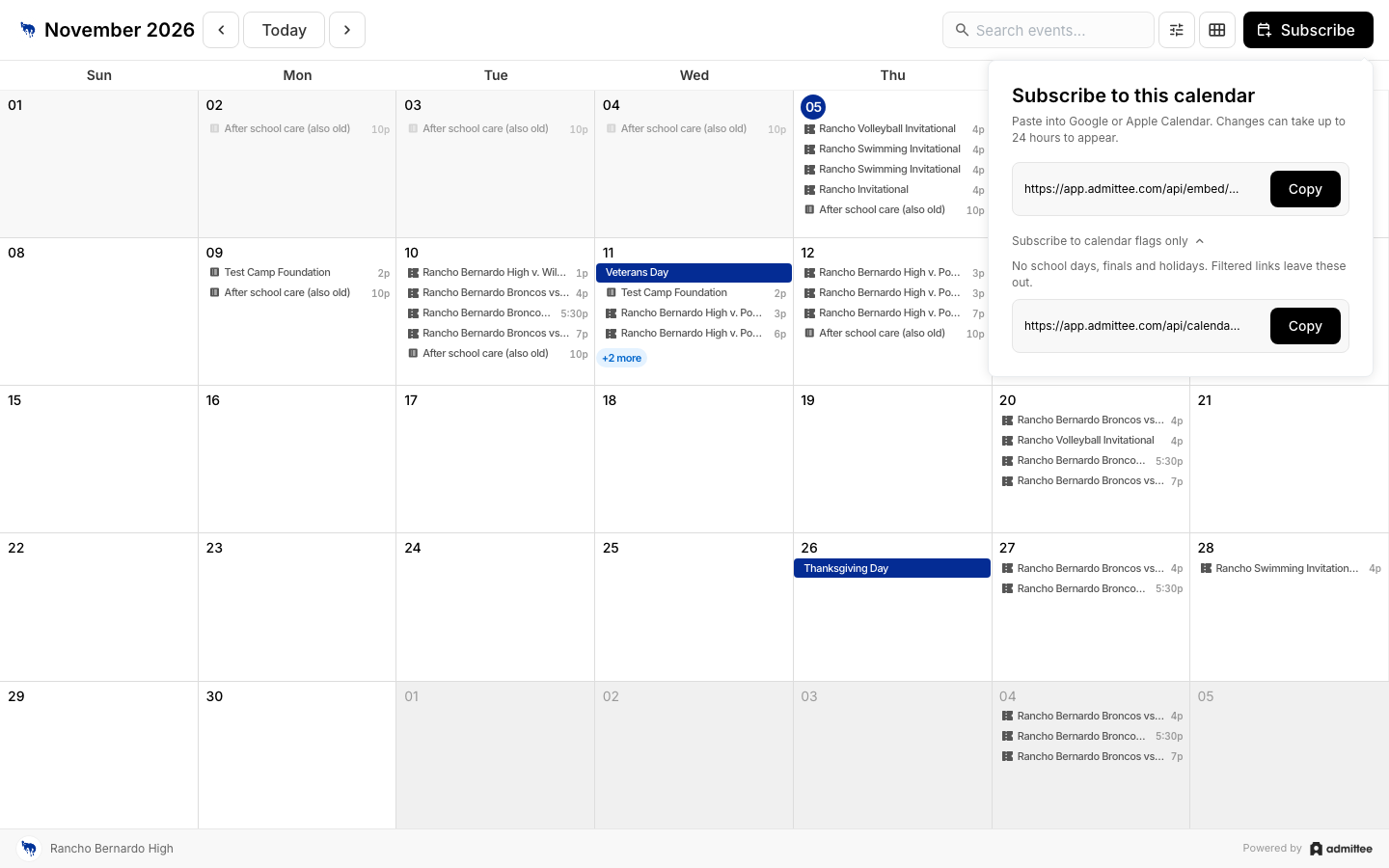 The Subscribe panel on the public calendar with "Subscribe to calendar flags only" open.
- Open the Subscribe panel on your public calendar (or in Scheduling, for staff).
- Under the main link, click Subscribe to calendar flags only. It opens to show a second link.
- Click Copy next to that link.
This link includes the calendar flags you create and the U.S. holidays Admittee adds automatically. If you have hidden or renamed a holiday, the link follows your change. If you have turned off automatic U.S. holidays, they are left out.
Add the link to a calendar app
- Google Calendar (on a computer): next to Other calendars, click +, then From URL. Paste the link and click Add calendar. Google doesn't let you add a link from its phone app, but once added, the calendar shows on your phone too.
- Apple Calendar (Mac): choose File, then New Calendar Subscription. Paste the link and click Subscribe.
- Outlook: choose Add calendar, then Subscribe from web, and paste the link.
- ParentSquare and other apps: use the app's option to add or sync a calendar by link (sometimes called an iCal or ICS link), and paste the Admittee link.
How long do changes take to show up?
Calendar apps check for changes on their own schedule, not Admittee's. Google Calendar can take up to 24 hours. Apple Calendar and Outlook are usually faster. Nothing needs to be re-shared: the same link keeps picking up changes.
Why don't I see "No school" days in a team's calendar?
Team links, and any link filtered by category, level or gender, leave out calendar flags so families in several groups don't see them repeated. Share the calendar flags link once with all families instead. A link filtered only by facility keeps calendar flags, because they decide whether a space is open.
Do links for one facility or room work the same way?
Yes. In Scheduling, click the filter button, choose a facility (and a room, if you like), then click Subscribe to get a link for just that space. The checkboxes in the Facilities list on the left only change what you see on screen; they don't change the link. Facility links include calendar flags, so whoever books the space also sees the days campus is closed.
How far back do subscribed calendars go?
Links include events from about the last 90 days onward, which is what calendar apps show anyway.
Related: Managing Facility Schedules and Adding Event Bands and Calendars to Your Website.